

 Jinba Flow
 Jinba App
 Jinba Toolbox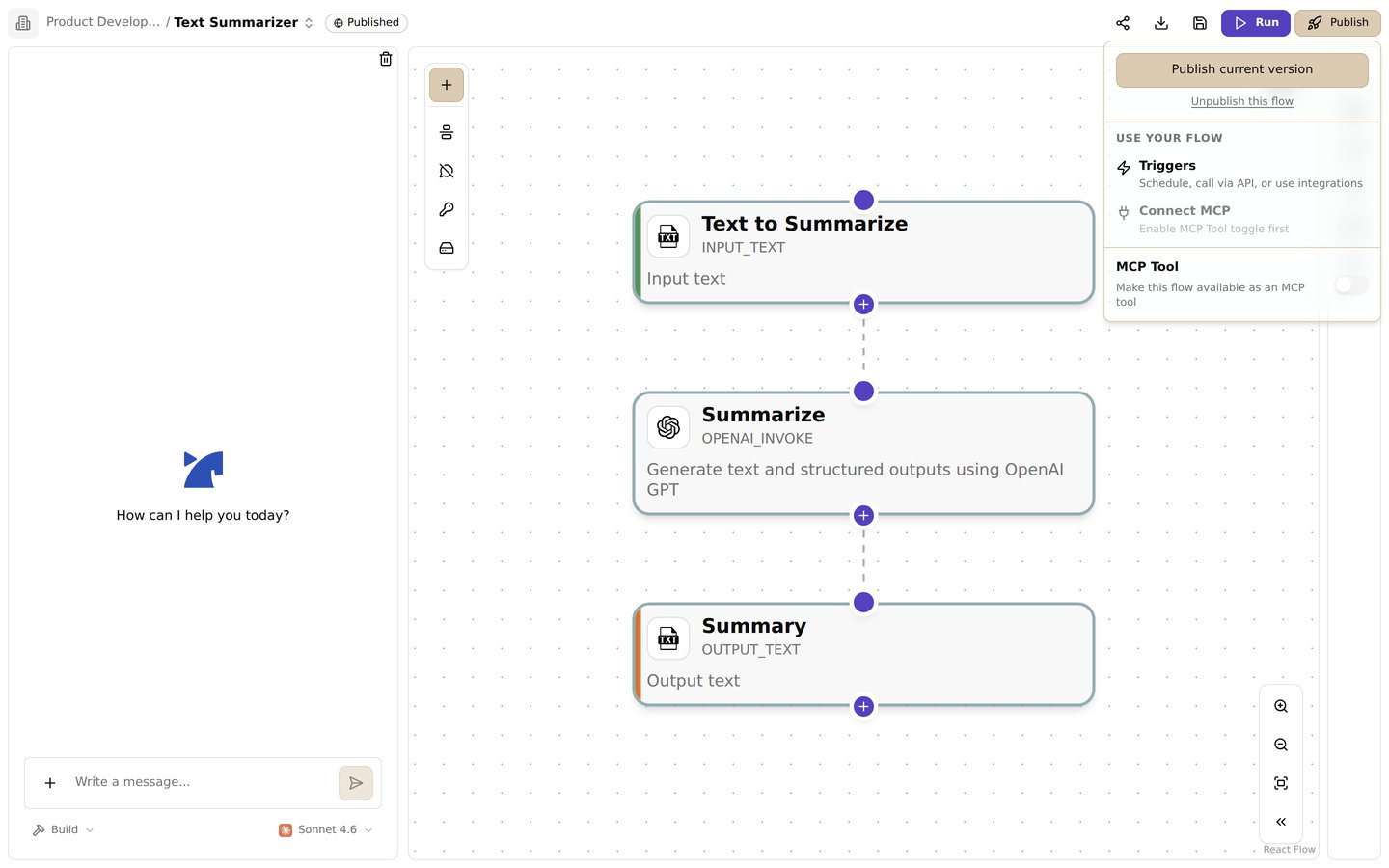
The publish menu. Publish the current version, configure triggers, or expose the flow as an MCP tool
Overview
Publishing a workflow in Jinba Flow makes it available for execution via API calls or as an MCP (Model Context Protocol) tool. When you publish a workflow, you create a stable version that can be accessed by external systems, other workflows, or AI assistants.What is Publishing?
Publishing a workflow:- Creates a Version: Saves the current workflow state as a published version
- Generates API Access: Creates an API key that allows external access to your workflow
- Enables API Execution: Makes the workflow callable via REST API endpoints
- Enables MCP Integration: Allows the workflow to be used as an MCP tool for AI assistants
- Locks the Version: The published version remains stable even if you make changes to the workflow
Publishing a Workflow
Step 1: Prepare Your Workflow
Before publishing, ensure your workflow is:- Valid: All steps are properly configured
- Tested: Run the workflow to verify it works correctly
- Complete: All required inputs and outputs are defined
Step 2: Publish from the Flow Editor
- Open your workflow in the Flow Editor
- Review your workflow to ensure it’s ready
- Click the Publish button in the editor toolbar
- If validation passes, the workflow will be published
- Publish: Workflow is not published
- Republish: Workflow is published but has unpublished changes
- Published: Workflow is published and up to date
Step 3: Publishing Options
When publishing, you can choose how your workflow is made available:Publish as API
Publishing as API makes your workflow accessible via REST API:- API Endpoint: Your workflow can be called using HTTP requests
- API Key: An API key is automatically generated for authentication
- Use Cases: Integration with external systems, webhooks, scheduled tasks
Publish as MCP Tool
Publishing as MCP makes your workflow available as a tool for AI assistants:- MCP Integration: The workflow appears as a tool in MCP-compatible AI assistants
- Parameter Configuration: Define input parameters that AI assistants can use
- Use Cases: AI-powered automation, assistant workflows, conversational interfaces
Publishing Process
Direct Publishing
For most workspaces, publishing is immediate:- Click Publish in the flow editor
- The workflow is validated
- A new version is created and marked as published
- An API key is generated (if not already exists)
- The workflow becomes available via API/MCP
Approval Process (Enterprise)
For Enterprise workspaces with approval processes enabled:- Click Publish in the flow editor
- Enter an optional comment explaining the changes
- Submit an approval request
- The workflow version is created but not immediately published
- An approver reviews and approves the request
- Once approved, the workflow is automatically published
- Approval requests appear in the approver’s dashboard
- Approvers can review changes and comments
- Approvers can approve or reject the request
- Approved workflows are automatically published
Unpublishing a Workflow
You can unpublish a workflow to make it unavailable:- Open the published workflow in the Flow Editor
- Click the Publish toggle to turn it off
- Confirm the unpublish action
- The workflow is no longer accessible via API or MCP
- Unpublishing does not delete the workflow or its versions
- You can republish at any time
- If the workflow is published as MCP, unpublishing will remove it from MCP tools
- API keys remain but the workflow won’t be accessible
Published Versions
Version Management
When you publish a workflow:- Version Created: A new flow version is created with label “PUBLISH”
- Version History: All published versions are saved in version history
- Stable Reference: The published version remains unchanged even if you edit the workflow
- Version Comparison: You can compare different versions to see changes
Republishing
When you make changes to a published workflow:- The workflow shows “unpublished changes” indicator
- Click Republish to publish the new version
- The new version replaces the previous published version
- The old version remains in history for reference
Using Published Workflows
Via API
Once published, you can call your workflow via API:Via MCP
Published workflows appear as tools in MCP-compatible AI assistants:- Tool Name: Based on your workflow name
- Parameters: Defined input parameters from your workflow
- Description: Uses your workflow description
- Usage: AI assistants can invoke your workflow as a tool
Via JINBA_FLOW_RUN Tool
You can also call published workflows from other workflows using theJINBA_FLOW_RUN tool:
API Keys
Automatic Generation
When you publish a workflow:- An API key is automatically generated
- The key is scoped to the specific workflow
- The key is stored securely in your workspace
- You can view the key in workflow settings
Managing API Keys
- Go to your workflow settings
- Navigate to the API or Publish Settings section
- View or regenerate your API key
- Use the key in API requests for authentication
- Never share API keys publicly
- Rotate keys regularly
- Use different keys for different environments
- Revoke keys if compromised
Publishing Best Practices
- Test Before Publishing: Always test your workflow thoroughly before publishing
- Version Control: Use meaningful version labels and comments
- Documentation: Document your workflow’s inputs, outputs, and behavior
- Error Handling: Implement proper error handling in your workflows
- Security: Review permissions and access controls before publishing
- Monitoring: Monitor published workflow usage and performance
- Gradual Rollout: Test with a small audience before full deployment
Publishing Status Indicators
The flow editor shows different states:- Unpublished: Workflow is not published (gray indicator)
- Published: Workflow is published and up to date (green indicator)
- Unpublished Changes: Workflow has changes not yet published (yellow indicator)
- Publishing: Workflow is currently being published (loading indicator)
Troubleshooting
Cannot Publish
- Validation Errors: Fix any validation errors in your workflow
- Missing Permissions: Ensure you have publish permissions
- Approval Required: Submit an approval request if required
Published Workflow Not Accessible
- Check API Key: Verify the API key is correct
- Check Permissions: Ensure the API key has proper permissions
- Verify Endpoint: Confirm you’re using the correct API endpoint
- Check Status: Verify the workflow is actually published
MCP Tool Not Appearing
- Publish Required: The workflow must be published to appear as MCP tool
- MCP Configuration: Ensure MCP is properly configured in workspace settings
- Parameter Definition: Define input parameters for MCP tool usage
Related Features
- Workspace - Learn about workspace management
- MCP - Learn about Model Context Protocol integration
- Archive Feature - Learn about archiving workflows