

 Jinba Flow
 Jinba App
 Jinba Toolbox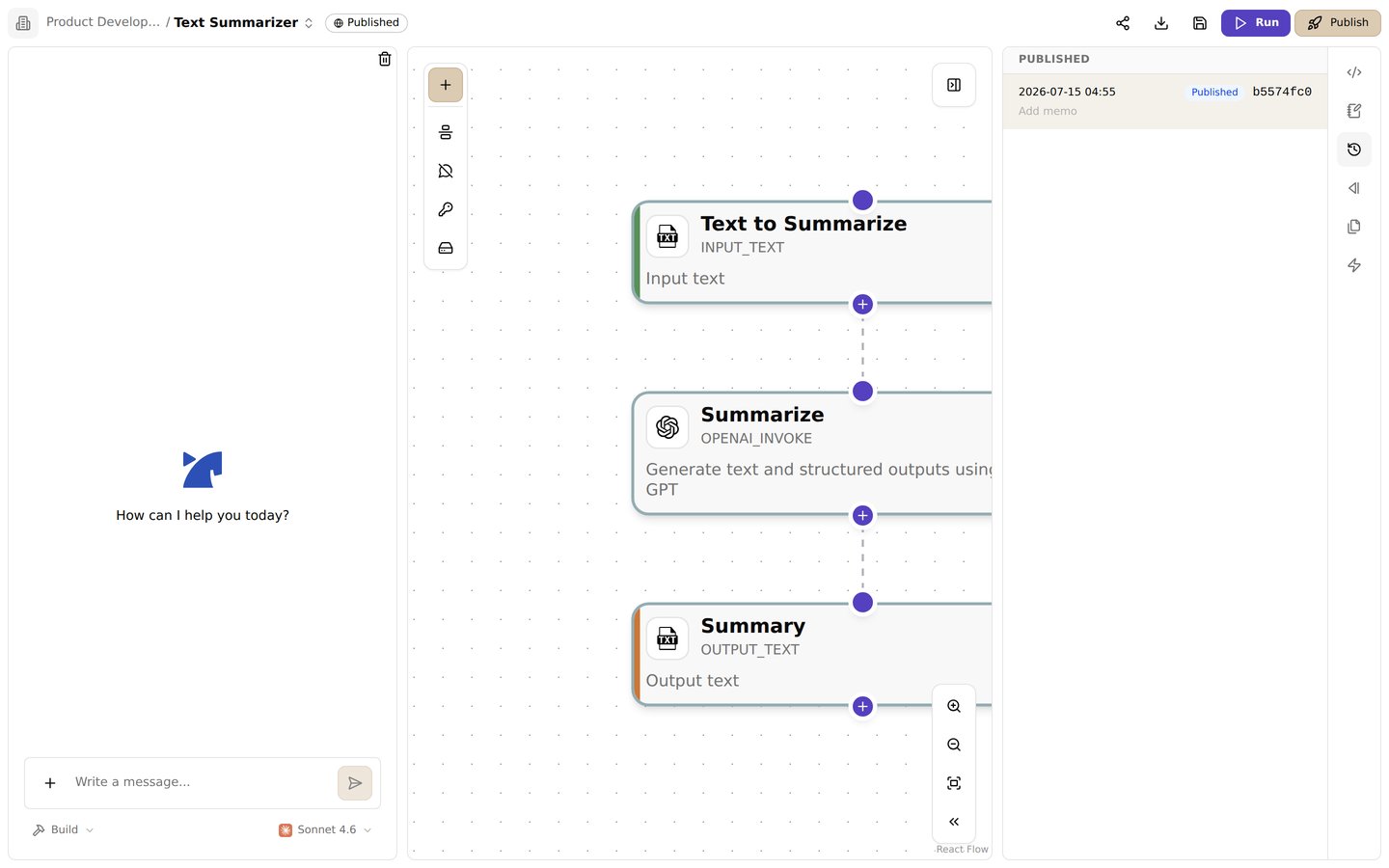
The versions panel. Review the history of published versions
Overview
Jinba Flow automatically tracks versions of your workflows and maintains a complete execution history. This allows you to view past changes, restore previous versions, and analyze workflow execution patterns.Workflow Versions
What are Versions?
Every time you make significant changes to a workflow, Jinba Flow creates a new version:- Automatic Versioning: Versions are created automatically when you publish, restore, or accept copilot changes
- Version History: All versions are preserved, allowing you to see the evolution of your workflow
- Version Labels: Versions are labeled to indicate their purpose (PUBLISH, RESTORE, COPILOT_CHANGE_ACCEPTION)
Version Types
Published Version
The version that is currently published and accessible via API or MCP:- Stable Reference: This version remains unchanged even if you edit the workflow
- API Access: External systems use this version
- MCP Tools: AI assistants use this version when invoking the workflow
Current/Editable Version
The version you’re currently editing:- Active Development: This is your working version
- Unpublished Changes: May have changes not yet published
- Preview Mode: You can preview other versions while keeping this as your working version
Previous Versions
All other versions in the workflow’s history:- Historical Record: Complete history of all workflow changes
- Restoration: Can be restored to become the current editable version
- Comparison: Can be compared with current version
Viewing Version History
Accessing Versions
- Open your workflow in the Flow Editor
- Navigate to the Versions panel (usually in the right sidebar)
- View the list of all workflow versions
Version Information
Each version shows:- Creation Date: When the version was created
- Label: Version type (PUBLISH, RESTORE, COPILOT_CHANGE_ACCEPTION)
- Status: Whether it’s published, current, or previous
- Steps: The workflow steps at that point in time
Previewing Versions
You can preview any version without making it your current version:- Click on a version in the versions list
- The workflow editor shows that version’s steps
- You can see how the workflow looked at that point
- Click the current version again to exit preview mode
Restoring Versions
When to Restore
You might want to restore a previous version if:- Recent Changes Caused Issues: Recent edits broke the workflow
- Revert to Stable Version: Go back to a known working version
- Undo Accidental Changes: Recover from unintended modifications
How to Restore
- Open the Versions panel
- Find the version you want to restore
- Click the Restore button (or similar action)
- Confirm the restoration
- The selected version becomes your current editable version
- Restoring creates a new version with label “RESTORE”
- Your current editable version is preserved in history
- The restored version becomes your working version
- You can restore again if needed
Version Labels
Versions are automatically labeled based on how they were created:PUBLISH
Created when you publish a workflow:- Purpose: Marks the version that was published
- Stability: This version remains stable for API/MCP access
- Updates: New publishes create new PUBLISH versions
RESTORE
Created when you restore a previous version:- Purpose: Marks a version that was restored from history
- Recovery: Indicates you went back to a previous state
- History: Preserves the restoration action in history
COPILOT_CHANGE_ACCEPTION
Created when you accept changes suggested by the Copilot:- Purpose: Marks versions created through AI assistance
- Collaboration: Tracks AI-assisted workflow improvements
- Learning: Helps identify patterns in AI suggestions
Execution History
What is Execution History?
Execution history tracks all workflow runs:- Complete Record: Every workflow execution is recorded
- Version Tracking: Each run is linked to the version that was executed
- Performance Data: Execution times and results are tracked
- Error Logging: Failed executions include error details
Viewing Execution History
- Navigate to your workflow
- Open the Runs or History tab
- View a chronological list of all executions
Execution Information
Each execution shows:- Execution Date: When the workflow was run
- Status: Success, failure, or in progress
- Version: Which workflow version was executed
- Execution Time: How long the workflow took
- Inputs: Arguments passed to the workflow
- Outputs: Results from the execution
- Errors: Any errors that occurred (if failed)
Filtering Execution History
You can filter execution history by:- Status: Show only successful, failed, or running executions
- Date Range: Filter by when executions occurred
- Version: View executions of a specific version
- Source: Filter by how the workflow was triggered (manual, API, scheduled, etc.)
Execution History Retention
By default, execution history is kept with no time limit. An organization owner or admin can set a retention period in Jinba Auth, under Organization → Run history retention: keep forever (the default), 7, 30 or 90 days, or a custom number of days. Once an execution is older than the retention period:- Deleted: The inputs and outputs of every step, including large outputs kept in file storage. Deletion is permanent.
- Not deleted:
- The record of the execution itself — when it ran, who ran it, which workflow, whether it succeeded or failed, and how many credits it used.
- Files that a workflow read, or saved to the workspace’s files.
- The setting applies to every workspace in the organization.
- Deletion runs once a day, so data is removed within about a day of passing the retention period.
- Shortening the period also deletes the data of existing executions that are already older than the new period. This cannot be undone.
- Executions that are still running, including ones waiting for an approval, are not affected until they finish.
- When you re-run a workflow from a step, outputs of an execution whose data was deleted cannot be reused, so the earlier steps run again.
- If an execution re-used the outputs of an older one (re-run from a step), the older execution’s data is kept until every execution re-using it has passed the retention period. There is no upper limit: as long as the workflow keeps being re-run from a step, large outputs of the execution that first produced them can be kept indefinitely. To bound how long data is kept, run the workflow from the start from time to time.
Using History for Debugging
Version Comparison
Compare different versions to understand changes:- Preview a previous version
- Compare with your current version
- Identify what changed between versions
- Understand the impact of modifications
Execution Analysis
Use execution history to:- Identify Patterns: Find recurring issues or successes
- Performance Tracking: See which versions performed better
- Error Analysis: Review failed executions to identify problems
- Usage Patterns: Understand how the workflow is being used
Debugging Workflow
- Find Problematic Version: Identify when issues started
- Compare Versions: See what changed between working and broken versions
- Review Executions: Check execution history for that version
- Restore if Needed: Restore a working version if current version has issues
Best Practices
- Regular Publishing: Publish stable versions regularly to create checkpoints
- Meaningful Changes: Make significant changes before creating new versions
- Version Review: Periodically review version history to understand evolution
- Execution Monitoring: Regularly check execution history for issues
- Restore Strategically: Use restoration when needed, but understand it creates new versions
- Document Changes: Use workflow descriptions or notepads to document major changes
Version Management
Version Lifecycle
- Creation: Version created automatically on significant actions
- Development: Current editable version is where you work
- Publishing: Publishing creates a stable PUBLISH version
- History: All versions are preserved in history
- Restoration: Previous versions can be restored
Version Limits
- Storage: All versions are stored indefinitely
- Access: You can access any version in history
- Performance: Large version histories may take longer to load
Related Features
- Publish - Learn about publishing workflows
- Debug - Learn about debugging workflows
- Archive Feature - Learn about archiving workflows