

 Jinba Flow
 Jinba App
 Jinba Toolbox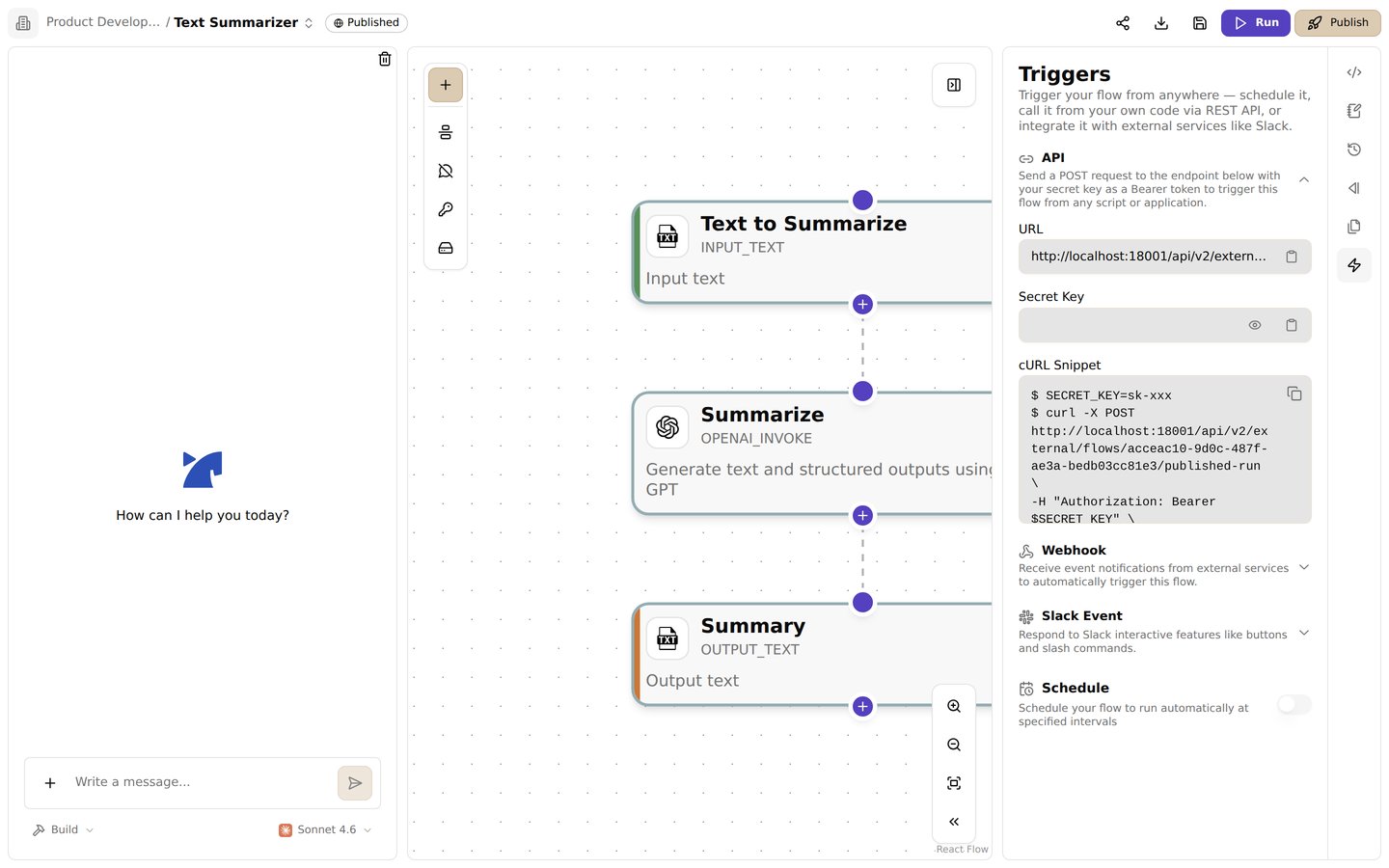
Schedule settings in the triggers panel. Run flows automatically at a set interval
Overview
Jinba Flow allows you to schedule workflows to run automatically at specified times using cron expressions. Scheduled workflows execute the published version, making them perfect for automated tasks, periodic data processing, and scheduled reports.What is Scheduling?
Scheduling enables automatic execution of workflows:- Automatic Execution: Workflows run automatically based on a schedule
- Cron Expressions: Use standard cron syntax to define execution times
- Published Version: Scheduled workflows always use the published version
- Timezone Support: Specify timezones for accurate scheduling
Prerequisites
To schedule a workflow:- Published Workflow: The workflow must be published (see Publish)
- Schedule Permission: You need permission to schedule workflows in the workspace
- Cron Expression: Define when the workflow should run
Setting Up Scheduling
Step 1: Open Workflow Settings
- Open your published workflow in the Flow Editor
- Navigate to the Runs or Settings section
- Find the Schedule section
Step 2: Enable Scheduling
- Toggle the Enable Schedule switch to ON
- The schedule configuration form appears
Step 3: Configure Schedule
- Enter a cron expression or use the visual schedule builder
- Optionally specify a timezone
- Review the schedule description (e.g., “Every day at midnight”)
- Save the schedule
Step 4: Verify Schedule
- Check that the schedule is active
- View the next scheduled execution time
- Monitor scheduled executions in the execution history
Cron Expressions
Basic Cron Syntax
Cron expressions consist of five fields:Common Cron Examples
Every Minute
Every Hour
Daily at Midnight
Daily at Noon
Every Monday at 9 AM
First Day of Every Month at Midnight
Every 15 Minutes
Every Day at 2:30 AM
Weekdays at 9 AM
First Day of Every Quarter at Midnight
Timezone Support
Specifying Timezone
You can specify a timezone using theCRON_TZ prefix:
Common Timezones
UTC: Coordinated Universal TimeAmerica/New_York: Eastern TimeAmerica/Chicago: Central TimeAmerica/Los_Angeles: Pacific TimeEurope/London: Greenwich Mean TimeAsia/Tokyo: Japan Standard TimeAustralia/Sydney: Australian Eastern Time
Schedule Management
Enabling a Schedule
- Open workflow settings
- Navigate to the Schedule section
- Toggle Enable Schedule to ON
- Configure the cron expression
- Save the schedule
Disabling a Schedule
- Open workflow settings
- Navigate to the Schedule section
- Toggle Enable Schedule to OFF
- The schedule is immediately disabled
Updating a Schedule
- Open workflow settings
- Navigate to the Schedule section
- Modify the cron expression
- Save the changes
Scheduled Execution Behavior
Published Version
Scheduled workflows always execute the published version:- Stability: Uses the stable published version, not your current edits
- Consistency: Ensures scheduled executions use the same version
- Updates: Republish to update the scheduled workflow version
Execution Context
Scheduled executions:- Source: Marked as “SCHEDULE” in execution history
- Arguments: Use default or empty arguments (unless configured)
- Permissions: Run with workspace permissions
- Logging: All executions are logged in execution history
Execution Monitoring
Monitor scheduled executions:- View execution history
- Filter by source “SCHEDULE”
- Check execution status and results
- Review any errors that occurred
Best Practices
- Test Before Scheduling: Test your workflow thoroughly before scheduling
- Publish Stable Versions: Only schedule workflows with stable published versions
- Timezone Awareness: Always specify timezones for accurate scheduling
- Monitor Executions: Regularly check execution history for scheduled runs
- Error Handling: Implement error handling in workflows for scheduled execution
- Resource Management: Consider resource usage for frequently scheduled workflows
- Documentation: Document schedule purpose and timing in workflow description
Common Use Cases
Daily Reports
Schedule workflows to generate daily reports:Data Synchronization
Schedule periodic data synchronization:Weekly Summaries
Schedule weekly summary generation:Monthly Processing
Schedule monthly data processing:Frequent Monitoring
Schedule frequent monitoring tasks:Troubleshooting
Schedule Not Running
Possible Causes:- Schedule is disabled
- Workflow is not published
- Cron expression is invalid
- Workflow is archived
- Verify schedule is enabled
- Ensure workflow is published
- Validate cron expression syntax
- Check workflow is not archived
Wrong Execution Time
Possible Causes:- Timezone not specified
- Incorrect cron expression
- Timezone conversion issues
- Specify timezone explicitly
- Verify cron expression
- Test with a simple schedule first
Execution Failures
Possible Causes:- Workflow errors
- Missing credentials
- Resource limitations
- Check execution history for errors
- Verify credentials are configured
- Review workflow logic
- Check resource availability
Schedule Validation
Cron Expression Validation
The system validates cron expressions:- Syntax Check: Ensures valid cron syntax
- Range Validation: Validates field ranges
- Error Messages: Provides clear error messages for invalid expressions
Visual Schedule Builder
Many interfaces provide visual schedule builders:- Point-and-Click: Select schedule options visually
- Preview: See schedule description before saving
- Validation: Automatic validation of schedule settings
Related Features
- Publish - Learn about publishing workflows
- API - Learn about calling workflows via API
- History and Versions - Learn about execution history