

 Jinba Flow
 Jinba App
 Jinba Toolbox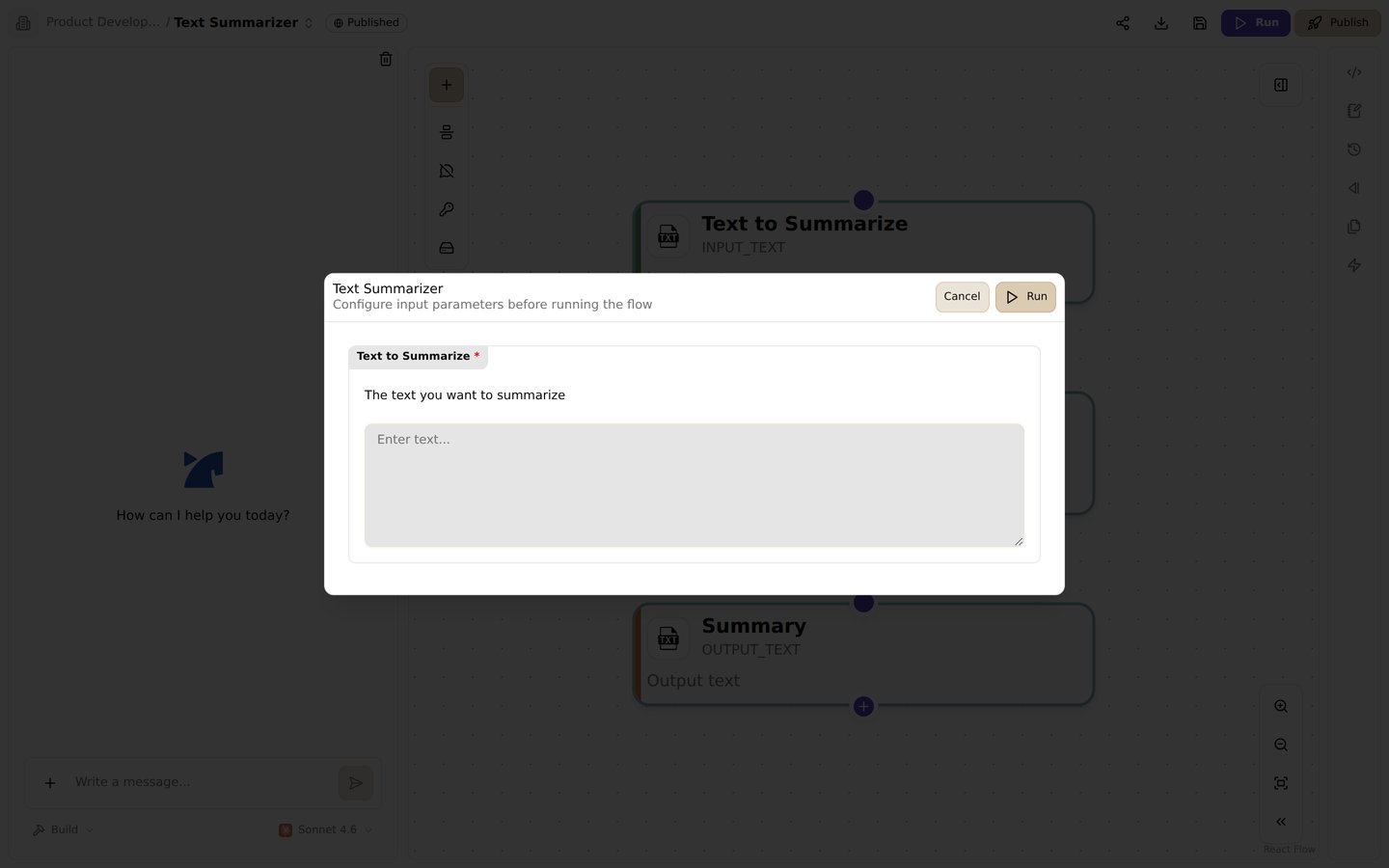
The run dialog. Set input parameters and test-run the flow
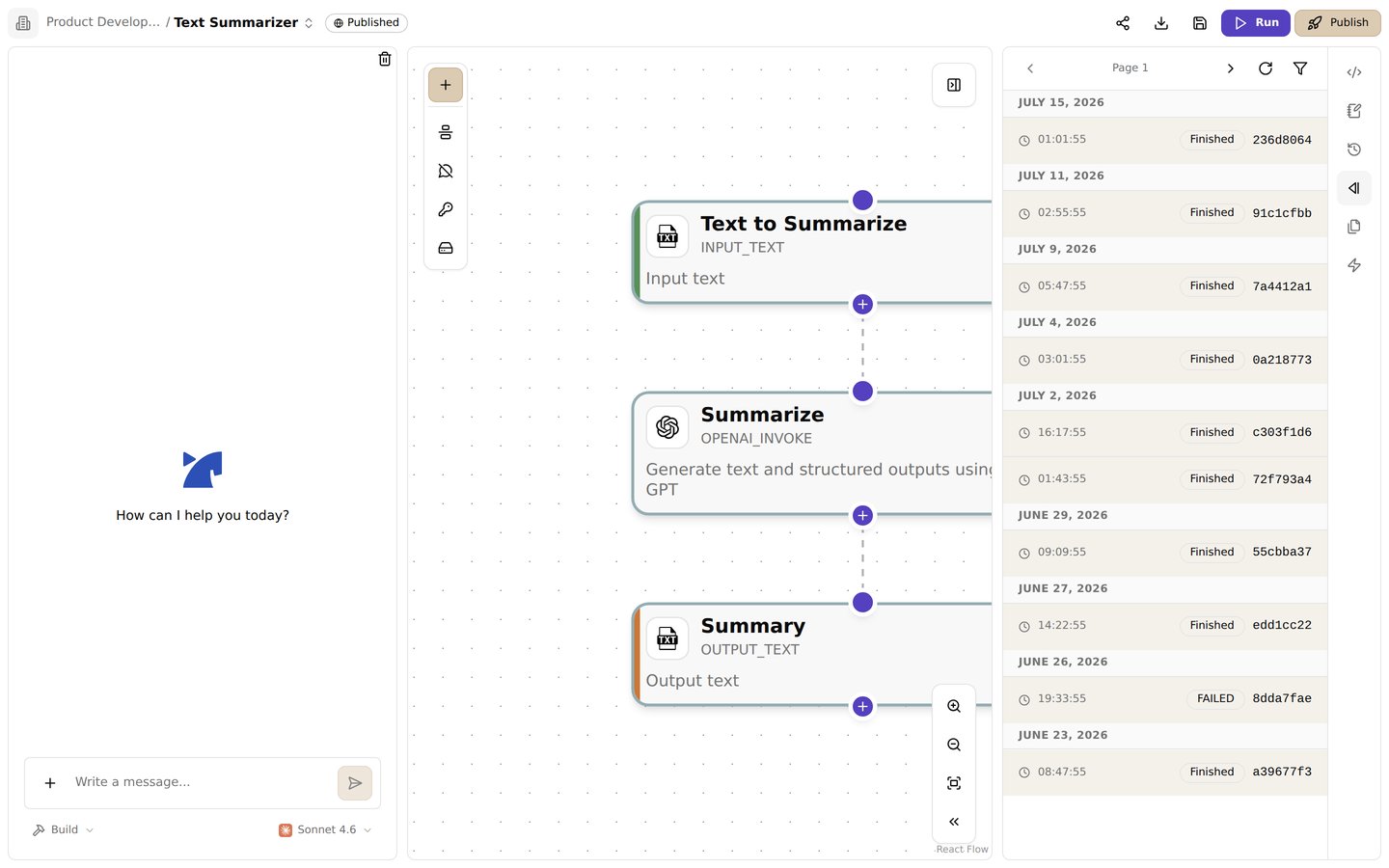
The run history panel. Check each run's status (completed/failed) and run ID
Overview
Jinba Flow provides several debugging features to help you identify and fix issues in your workflows. You can run individual steps, view execution history, inspect step outputs, and analyze errors to quickly resolve problems.Debugging Features
Single Step Execution
Test individual steps in isolation to verify they work correctly:- Isolated Testing: Run a single step without executing the entire workflow
- Previous Outputs: Use outputs from previous workflow runs as input
- Quick Validation: Verify step configuration and logic before full execution
- Error Isolation: Identify which specific step is causing issues
Flow Run History
View and analyze past workflow executions:- Execution Logs: See detailed logs of all workflow runs
- Step Status: Check which steps succeeded, failed, or were skipped
- Timing Information: View execution time for each step
- Output Inspection: Examine outputs from each step
Error Messages
Comprehensive error reporting helps identify issues:- Step-Level Errors: See exactly which step failed and why
- Error Details: View error messages, stack traces, and context
- Validation Errors: Get clear messages about configuration issues
Running a Single Step
Step 1: Open Your Workflow
- Open your workflow in the Flow Editor
- Navigate to the step you want to debug
- Ensure the step is properly configured
Step 2: Run Single Step
- Click on the step you want to test
- Look for the Run Step or Test Step option
- If previous outputs are available, they will be used as input
- Click to execute the step
Step 3: Review Results
- Check the step output in the step panel
- Verify the output matches your expectations
- If there are errors, review the error message
- Make adjustments and test again
Using Previous Outputs
When debugging a step, you can use outputs from previous workflow executions:- Automatic Detection: The system automatically detects available previous outputs
- Output Selection: Previous step outputs are used as inputs for the step being tested
- Manual Override: You can manually specify inputs if needed
Viewing Flow Run History
Accessing Run History
- Open your workflow in the Flow Editor
- Navigate to the Runs or History tab
- View a list of all workflow executions
Analyzing Run Results
Each run shows:- Status: Success, failure, or in progress
- Execution Time: How long the workflow took to complete
- Step Status: Individual status for each step
- Outputs: Final workflow output
- Errors: Any errors that occurred during execution
Inspecting Step Outputs
- Click on a specific run in the history
- Expand individual steps to see their outputs
- Review input and output data for each step
- Identify where issues occurred
Understanding Error Messages
Common Error Types
Validation Errors
These occur when step configuration is incorrect:- Missing Required Fields: Required inputs or configs are not provided
- Invalid Values: Input values don’t match expected types or formats
- Missing Dependencies: Referenced steps or secrets don’t exist
Execution Errors
These occur during step execution:- API Errors: External service returned an error
- Timeout Errors: Step execution exceeded time limit
- Permission Errors: Insufficient permissions for the operation
Dependency Errors
These occur when step dependencies aren’t met:- Missing Previous Outputs: Required previous step outputs are not available
- Circular Dependencies: Steps have circular dependency chains
- Invalid References: Referenced step IDs don’t exist
Reading Error Messages
Error messages typically include:- Error Type: What kind of error occurred
- Step ID: Which step failed
- Error Message: Human-readable description
- Stack Trace: Technical details for debugging (if available)
- Context: Additional information about the error
Debugging Workflow
Step-by-Step Debugging Process
- Identify the Problem: Review error messages and failed steps
- Isolate the Issue: Use single step execution to test individual steps
- Check Inputs: Verify that step inputs are correct
- Review Configuration: Ensure step configs (API keys, settings) are valid
- Test Fixes: Make changes and test again with single step execution
- Run Full Workflow: Once individual steps work, run the full workflow
Common Debugging Scenarios
Scenario 1: Step Fails Immediately
Problem: A step fails as soon as it starts executing. Debugging Steps:- Check step configuration (API keys, settings)
- Verify input values are correct
- Test the step in isolation using single step execution
- Review error message for specific issues
Scenario 2: Step Produces Unexpected Output
Problem: Step executes successfully but output is incorrect. Debugging Steps:- Review step inputs to ensure they’re correct
- Check step logic and tool configuration
- Test with different input values
- Compare with expected output format
Scenario 3: Workflow Fails Mid-Execution
Problem: Workflow starts successfully but fails partway through. Debugging Steps:- Identify which step failed from run history
- Check if previous steps produced correct outputs
- Verify step dependencies are correct
- Test the failing step in isolation
Scenario 4: Conditional Logic Issues
Problem: Steps withwhen conditions aren’t executing as expected.
Debugging Steps:
- Verify condition expressions are correct
- Check that referenced step outputs exist
- Test condition evaluation with actual data
- Review step execution order
Best Practices
- Test Incrementally: Build and test workflows step by step
- Use Single Step Execution: Test individual steps before running full workflow
- Review Run History: Regularly check execution history for patterns
- Validate Inputs: Ensure inputs are correct before execution
- Check Error Messages: Read error messages carefully for specific guidance
- Test with Real Data: Use actual data when possible for more accurate testing
- Document Expected Behavior: Note expected outputs for easier debugging
Troubleshooting Tips
Step Not Executing
- Check Dependencies: Ensure all required previous steps completed successfully
- Verify Conditions: If step has
whencondition, ensure condition is met - Review Execution Order: Check that steps are ordered correctly
Unexpected Outputs
- Inspect Inputs: Verify inputs to the step are what you expect
- Check Tool Configuration: Ensure tool settings are correct
- Review Tool Documentation: Confirm you’re using the tool correctly
Performance Issues
- Check Execution Time: Review step execution times in run history
- Identify Slow Steps: Find steps that take longest to execute
- Optimize Configuration: Adjust settings to improve performance
API Errors
- Verify Credentials: Check that API keys and credentials are valid
- Review Rate Limits: Ensure you’re not exceeding API rate limits
- Check Service Status: Verify external services are operational
Related Features
- Publish - Learn about publishing workflows
- Workspace - Learn about workspace management
- Credit Costs - Understand workflow execution costs