

 Jinba Flow
 Jinba App
 Jinba Toolbox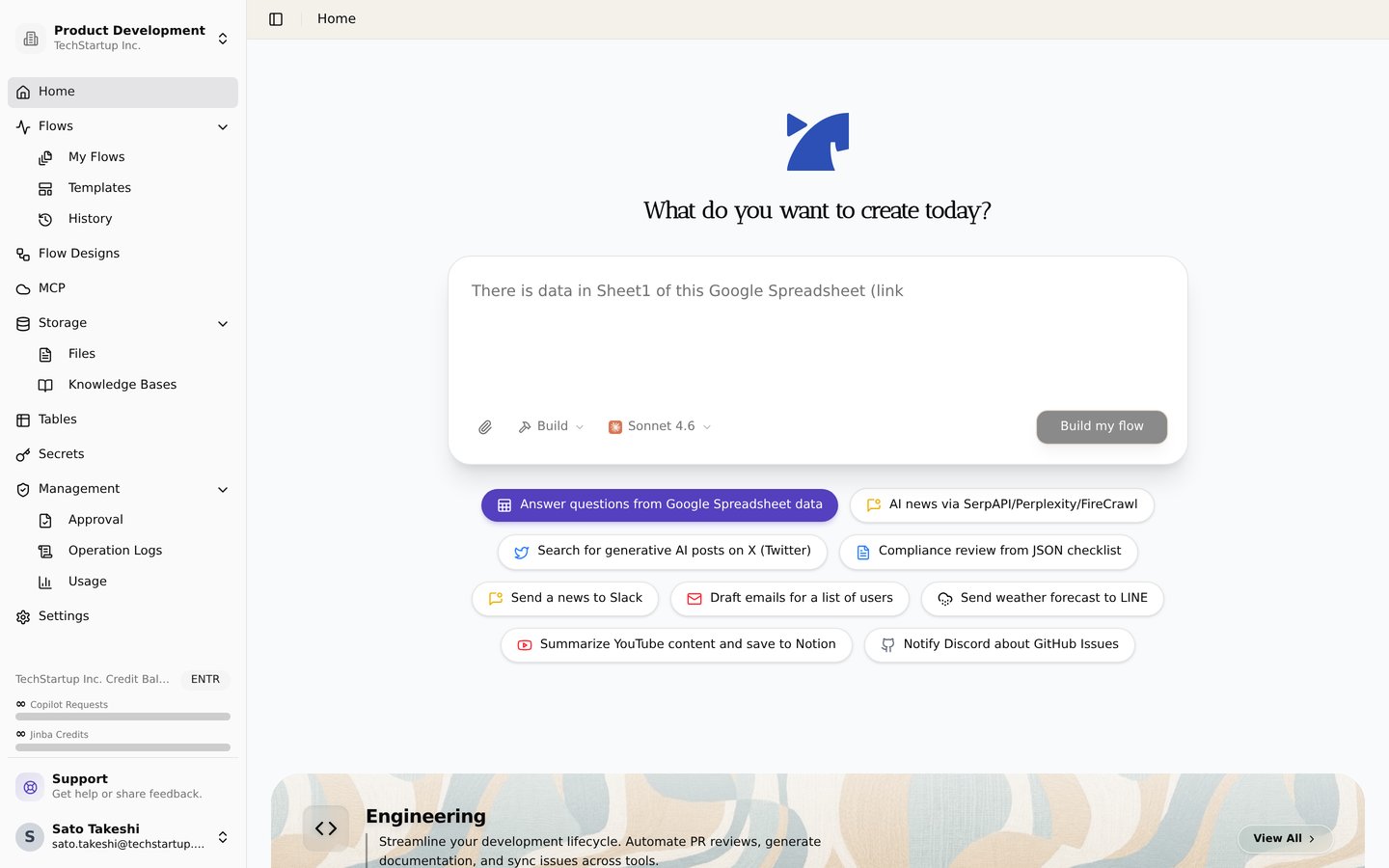
The workspace home. Create flows in natural language, and access flows, storage, secrets, and admin features from the sidebar
What is a Workspace?
A workspace in Jinba Flow is your personal or team environment where you create, manage, and execute workflows. Think of it as your dedicated space for organizing all your automation projects, credentials, and configurations.Key Features of Workspaces
Flow Management
- Create and Organize Flows: Build multiple workflows within a single workspace
- Version Control: Track changes and manage different versions of your flows
- Flow Sharing: Share flows with team members or make them public
- Flow Templates: Save and reuse common workflow patterns
Credentials Management
- Secure Storage: Store API keys and OAuth credentials securely
- Service Integration: Configure credentials for various external services
- Access Control: Manage who can access which credentials
- Credential Organization: Organize credentials by service type or project
Settings and Configuration
- Workspace Settings: Customize workspace preferences and behavior
- Team Management: Invite team members and manage permissions
- Billing and Subscriptions: Manage your subscription plan and billing information
- Usage Monitoring: Track credit usage and workflow execution statistics
Files and Storage Management
- File Storage: Upload, organize, and manage files in your workspace
- File Sharing: Share files using temporary links or permanent URIs
- Knowledge Bases: Create and manage vector databases for RAG systems
- Output Files: Access files generated by workflow executions from the flow editor
MCP Integration
- MCP Server Setup: Configure your workspace as an MCP server
- Flow Exposure: Expose your flows as MCP tools for use with LLMs
- Parameter Configuration: Set up input parameters for MCP-enabled flows
Workspace Types
Personal Workspace
A personal workspace is your individual space where you can:- Create and manage your own workflows
- Store personal credentials
- Track your own usage and credits
- Access all basic features
Team Workspace (Enterprise)
Team workspaces provide additional collaboration features:- Shared Resources: Share flows, credentials, and configurations with team members
- Role-Based Access: Assign different roles and permissions to team members
- Team Analytics: View team-wide usage statistics and performance metrics
- Approval Workflows: Implement approval processes for critical operations
- Organization Management: Manage multiple teams and workspaces under one organization
Getting Started with Your Workspace
- Access Your Workspace: Log in to Jinba Flow and navigate to your workspace dashboard
- Create Your First Flow: Use the Chat Panel, Graph Editor, or YAML Coding Panel to create workflows
- Configure Credentials: Set up API keys and OAuth connections for the services you want to use
- Upload Files (Optional): Upload files to your workspace storage for use in workflows
- Set Up MCP (Optional): Configure your workspace MCP server to expose flows to LLMs
- Monitor Usage: Keep track of your credit consumption and workflow executions
Files and Storage
File Management
Your workspace includes a Storage section where you can:- Upload Files: Store documents, data files, and other resources
- Organize Files: Search, sort, and manage your file collection
- Share Files: Generate temporary links or permanent URIs for file sharing
- Use in Workflows: Reference files using permanent URIs (
jinbaflow://{file-id})
Storage Access
Access storage from the workspace sidebar:- Click Storage in the sidebar
- Use the Files tab for file management
- Use the Knowledge Bases tab for vector database management
Files in Workflows
Files stored in your workspace can be:- Referenced as Input: Use permanent URIs to reference files in workflow steps
- Generated as Output: Save workflow results as files
- Processed: Use file processing tools to extract, convert, or analyze content
Knowledge Bases
Knowledge bases enable RAG (Retrieval-Augmented Generation) functionality:- Create Knowledge Bases: Set up vector databases for semantic search
- Upload Documents: Add PDFs, DOCX, and text files for indexing
- Automatic Processing: Documents are automatically chunked and vectorized
- Vector Search: Use semantic search to find relevant information
Workspace Members and Roles
Understanding Workspace Roles
Workspaces support different roles that determine what members can do:Owner
The Owner role has full access to the workspace:- Full Workspace Control: Manage all workspace settings and configurations
- Member Management: Invite new members, remove members, and change member roles
- Resource Management: Create, update, delete, and manage all flows, credentials, and files
- Workspace Deletion: Can delete the workspace (requires at least one owner to remain)
- MCP Configuration: Full access to MCP server configuration
- Operation Logs: View operation logs and audit trails
Member
The Member role has standard access to workspace resources:- Flow Management: Create, run, update, and delete flows
- Resource Access: View and use shared credentials and files
- Limited Settings: Cannot modify workspace settings or manage members
- No Member Management: Cannot invite or remove other members
Viewer (Enterprise)
The Viewer role has read-only access:- View Only: Can view flows, credentials, and files but cannot modify them
- No Execution: Cannot run flows or create new resources
- No Settings Access: Cannot access workspace settings
Adding Members to Your Workspace
To add members to your workspace:- Navigate to Workspace Settings: Go to your workspace settings page
- Open Members Section: Click on the “Members” or “Team” tab
- Invite Member: Click the “Invite Member” button
- Enter Email: Enter the email address of the user you want to invite
- Select Role: Choose the appropriate role (Owner, Member, or Viewer)
- Send Invitation: The user will be added to the workspace with the selected role
- You must be an Owner of the workspace to invite members
- The user must already have a Jinba Flow account (they will be found by email)
- Your subscription plan must support the number of team members you’re adding
- Enterprise plans have higher member limits
Managing Member Roles
As a workspace owner, you can:- Change Roles: Update a member’s role at any time
- Remove Members: Remove members from the workspace (except the last owner)
- View Member List: See all current members and their roles
- Monitor Activity: View member activity and usage statistics
Workspace Ownership
- Initial Owner: The user who creates a workspace automatically becomes the first owner
- Multiple Owners: You can have multiple owners in a workspace for shared management
- Owner Requirements: A workspace must always have at least one owner
- Transfer Ownership: You can promote other members to owner role, but cannot remove the last owner
Workspace Best Practices
- Organize by Project: Create separate flows for different projects or use cases
- Use Descriptive Names: Name your flows and credentials clearly for easy identification
- Regular Cleanup: Archive unused flows to keep your workspace organized
- Monitor Credits: Regularly check your credit usage to optimize workflow costs
- Secure Credentials: Never share API keys and regularly rotate them for security
- Manage Access: Regularly review member roles and remove access for users who no longer need it
- Role Assignment: Assign the minimum necessary role to members (principle of least privilege)
Related Features
- Model Context Protocol (MCP) - Learn how to set up MCP for your workspace
- Credit Costs - Understand how credits work and are consumed
- Archive Feature - Learn how to archive and restore flows