

 Jinba Flow
 Jinba App
 Jinba Toolbox
What is Form Execution
The Form Execution screen allows you to execute each tool provided by a connector individually using a form interface. This is convenient when you want to directly operate specific tools without using chat.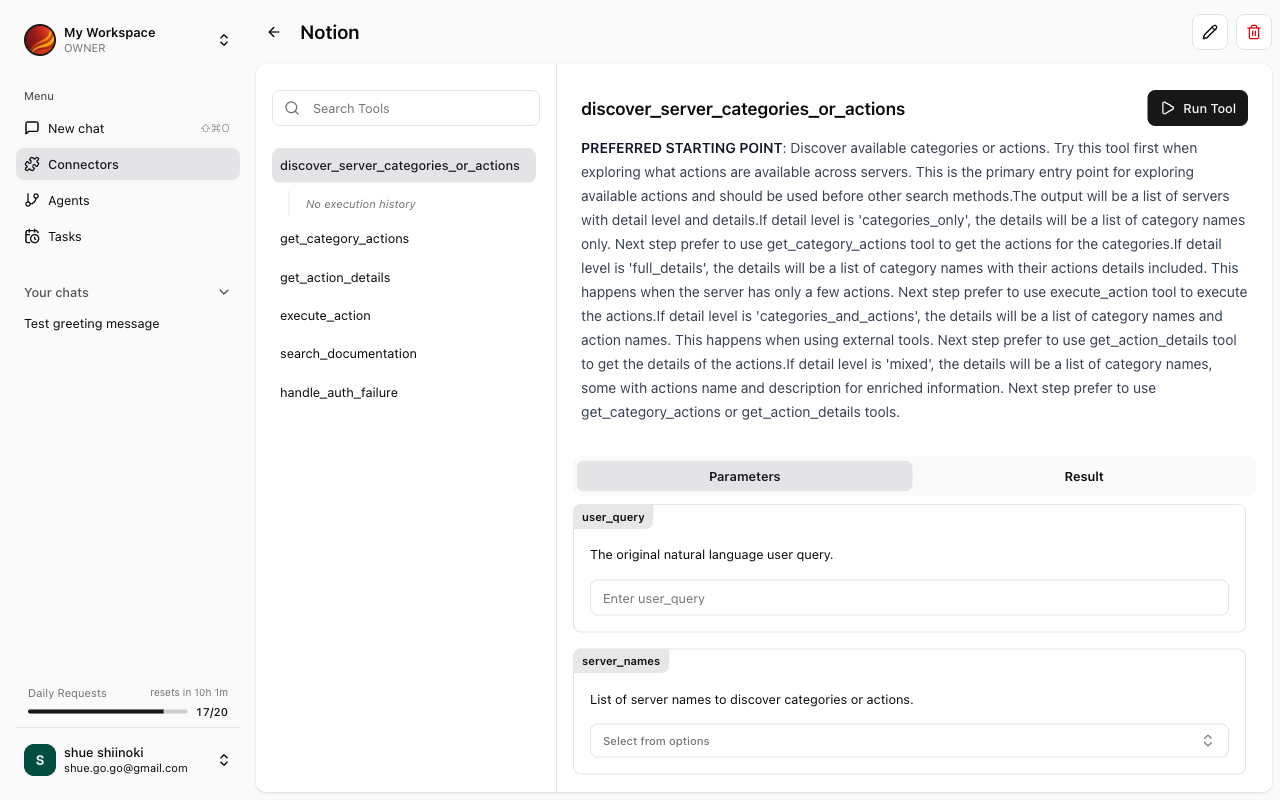
Accessing Form Execution
1
Open Connector Management Screen
Select “Connectors” from the side menu.
2
Select a Connector
Click the connector you want to use from the My Connectors list.
3
Select Form Execution
Click the “Form Execution” tab or button on the connector details screen.
Tool List
A list of tools provided by the connector is displayed. Each tool displays the following information:- Tool Name: Identifier name of the tool
- Description: Explanation of the tool’s function
- Parameters: Input fields required for tool execution
Searching Tools
When there are many tools, you can use the search function to quickly find the one you need.1
Enter in Search Box
Enter keywords in the search box at the top of the tool list.
2
Review Results
Only tools matching the tool name or description will be displayed.
Executing Tools
Execute the selected tool using a form interface.1
Select a Tool
Click the tool you want to execute from the tool list.
2
Enter Parameters
Enter the required parameters in the form. Required fields are marked with ”*”.
3
Click Execute Button
Click the “Execute” button to run the tool.
4
Review Results
The execution results will be displayed on screen.
Execution Result Summary
After tool execution, a summary of the results is displayed. The summary includes:- Execution Status: Success/Failure
- Execution Time: Date and time the tool was executed
- Retrieved/Processed Data: Result data from execution
- Error Information: Error details if execution failed
Execution History
You can view the history of previously executed tools.1
Select History Tab
Click the “History” tab on the Form Execution screen.
2
Review History
Past execution history is displayed in a list. You can check date/time, tool name, and status.
3
View Details
Click a history item to view the execution details (input parameters, execution results).
Re-executing from History
You can re-execute a tool with the same parameters from past execution history.1
Select History Item
Click the history item you want to re-execute.
2
Click 'Re-execute'
Click the “Re-execute” button on the details screen.
Troubleshooting
Tool execution fails
Tool execution fails
Please check the following:
- Are all required parameters filled in?
- Are the parameter values in the correct format?
- Is the connector connection valid?
Execution results are empty
Execution results are empty
- There may be no data matching the search criteria
- Try changing the parameter values and re-executing