

 Jinba Flow
 Jinba App
 Jinba Toolbox
What is Agent Builder
Agent Builder is the screen for creating and editing AI agents. You configure agent settings by giving instructions to the AI in a chat format.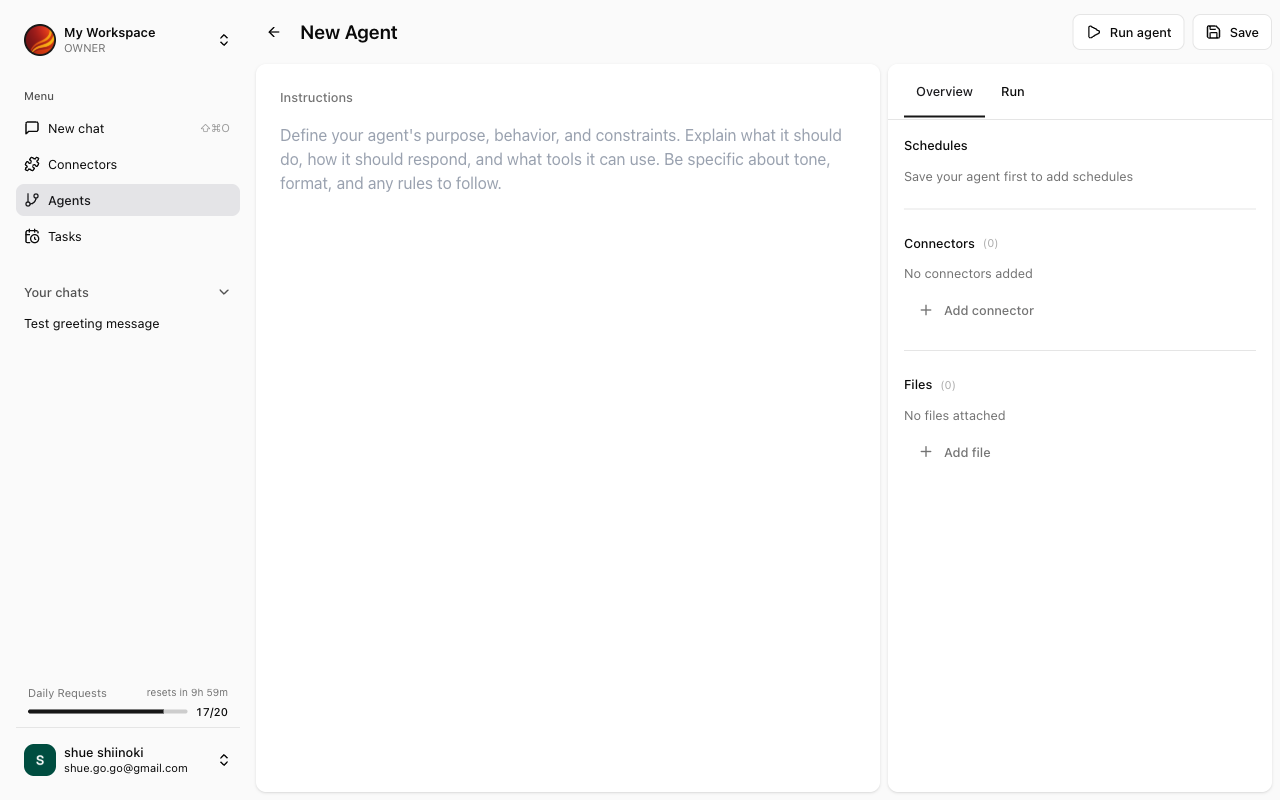
Opening Agent Builder
For New Creation
1
Open Agent Management Screen
Select “Agents” from the side menu.
2
Click 'New' Button
Click the “New” button at the top of the screen.
Editing Existing Agents
1
Select Agent to Edit from List
Select “Edit” from the settings menu (⋮) of the agent you want to edit.
Screen Layout
Agent Builder consists of the following areas:Chat-based Instructions
In Agent Builder, you can give agent configuration instructions to the AI in a chat format.Example Instructions
Connector Reference Settings
Configure the connectors to be used by the agent.1
Open Connector Settings
Click the “Connectors” section in the settings panel.
2
Select Connectors
Check the connectors you want to use with this agent from the available connectors list.
3
Save Settings
The selected connectors are associated with the agent.
When connectors are configured, the selected connectors become automatically available in chats using this agent.
File Reference Settings
Configure files for the agent to reference.1
Open File Settings
Click the “Files” section in the settings panel.
2
Upload Files
Click the “Add Files” button and upload the files you want the agent to reference.
3
Confirm Files
Uploaded files are displayed in the list.
Reference File Examples
- FAQ Documents: Information that forms the basis for customer support agent responses
- Report Templates: Sample output formats
- Business Manuals: Procedure and policy references
Saving Agents
After completing the settings, save the agent.1
Enter Agent Name
Enter a name for the agent (if not already entered).
2
Enter Description (Optional)
Enter a description for the agent. A clear description is recommended as it will be displayed in the list.
3
Click 'Save' Button
Click the “Save” button at the top of the screen to save.
Running Agents (Testing)
You can test run the agent before or after saving.1
Click 'Run' Button
Click the “Run” button in Agent Builder.
2
Test in Chat Screen
A chat screen with the agent’s settings applied opens. You can send actual questions to verify the behavior.
If there are no issues with the test run, save the agent and proceed with publishing preparations.
Troubleshooting
Instructions not being applied
Instructions not being applied
- Try describing the instructions more specifically
- Enter in a format that’s easier for the AI to understand
Cannot select connector
Cannot select connector
- Verify the connector is installed
- Check the connector’s connection status
Cannot upload file
Cannot upload file
- Verify the file format is supported
- Check if the file size exceeds the limit