> ## Documentation Index
> Fetch the complete documentation index at: https://docs.jinba.io/llms.txt
> Use this file to discover all available pages before exploring further.
# Attach resources
> How to attach skills, connectors, and knowledge to an agent
An agent's capability is defined by the resources attached to it: skills, connectors, and knowledge. Resources live in one of two places.
| Location | Description |
| -------------------- | ---------------------------------------------------------------------------------------------------------------------------- |
| **Workspace shared** | Shared resources managed under "Configure" in the sidebar (Skills / Knowledge / Connectors). Multiple agents can attach them |
| **Agent-specific** | Resources used by one agent only. Registered from the agent detail page; they do not appear on the shared pages |
## Attaching skills
On the agent detail page, open the **Skills** tab and click "Add skill."
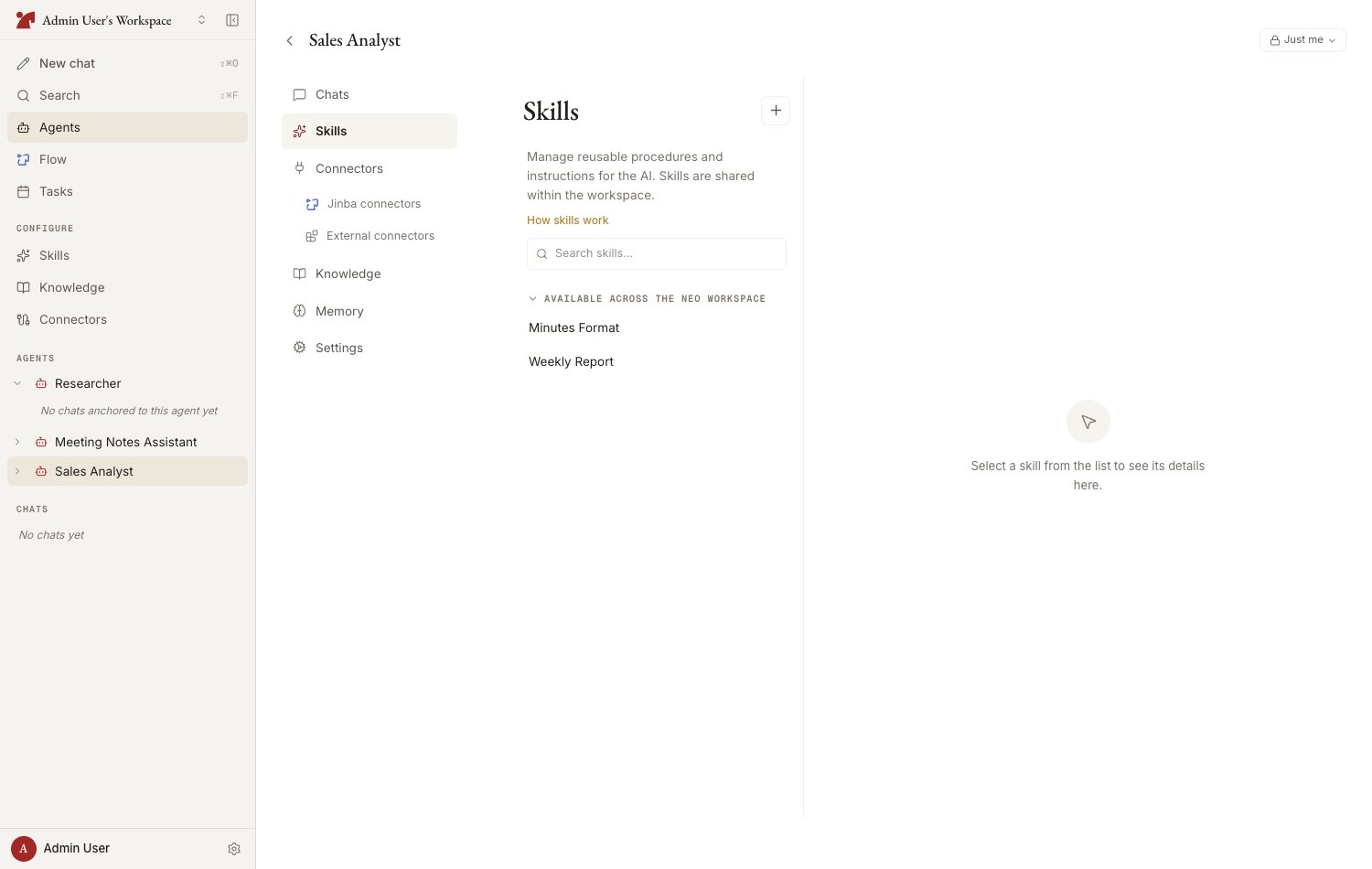 * Search for a workspace-shared skill and attach it, or use "Create new" to build an agent-specific skill from scratch
* There is a limit on how many skills can be attached to one agent (the remaining count is shown on the add screen)
* To use a shared skill with small tweaks, use "**Copy to this agent and edit**" (fork)
Editing a workspace-shared skill **affects every other agent** it is attached to. Be mindful of the blast radius.
## Attaching connectors
Manage these on the **Connectors** tab of the agent detail page.
* **jinba-flow** — Jinba connections are grouped into "**In use**," "**Available · Connected in workspace**," and "**Available · Not connected (connect to use)**." Press "**Connect**" to attach one in one click. Your own workspaces also appear in the not-connected group and connect as connections dedicated to this agent (marked with an "**Agent-only**" badge)
* **Add connector** (Custom MCP) — pick a shared MCP connection, or register an agent-specific MCP server
Agent-specific connections do not appear to other agents or in the workspace catalog. Use them for connections you want to keep scoped, such as department-specific systems.
## Attaching knowledge
On the agent detail page, open the **Knowledge** tab and click "Add knowledge."
* **Attach files individually; sync folders wholesale** — setting a folder to "auto-sync" means files added to the folder later are automatically reflected in the agent
* Search and select workspace files and folders, or drag and drop files right there to add them (pasting URLs is supported too) — files and URLs added this way become agent-specific material
* "**Import from Notion**" at the bottom of the picker registers Notion pages as agent-specific knowledge. It opens the "**Add Knowledge (this agent only)**" dialog, where you paste the page URL and choose a destination folder
The Knowledge tab shows each item's sync status, size, and how many agents use it — the same information as the workspace Knowledge page. Agent-specific folders offer the full folder menu (add source, create subfolder, rename, move, delete) and drag-and-drop moves within the agent's scope; folders mirrored from the workspace stay read-only, and auto-synced folders offer "**Stop syncing**" only.
There is a limit on how many knowledge sources are loaded automatically when a chat starts. Sources beyond the limit are not auto-loaded, but the AI can still search for and retrieve them as needed. See [Organize knowledge](/en/pages/jinba_app_neo/knowledge/organize) for details.
## Detaching
Remove attachments from the list in each tab. In the Knowledge tab, the action depends on where the item lives: a workspace-shared item shows "**Remove from agent**" — the source itself stays in the workspace and can be re-added later — while an agent-specific item shows a red "**Delete**" with a confirmation, and deleted agent-specific resources cannot be restored. Bulk selection adapts the same way ("Remove from agent" / "Delete selected"; a mixed selection shows "**Delete / remove**" with a single confirmation covering both).
* Search for a workspace-shared skill and attach it, or use "Create new" to build an agent-specific skill from scratch
* There is a limit on how many skills can be attached to one agent (the remaining count is shown on the add screen)
* To use a shared skill with small tweaks, use "**Copy to this agent and edit**" (fork)
Editing a workspace-shared skill **affects every other agent** it is attached to. Be mindful of the blast radius.
## Attaching connectors
Manage these on the **Connectors** tab of the agent detail page.
* **jinba-flow** — Jinba connections are grouped into "**In use**," "**Available · Connected in workspace**," and "**Available · Not connected (connect to use)**." Press "**Connect**" to attach one in one click. Your own workspaces also appear in the not-connected group and connect as connections dedicated to this agent (marked with an "**Agent-only**" badge)
* **Add connector** (Custom MCP) — pick a shared MCP connection, or register an agent-specific MCP server
Agent-specific connections do not appear to other agents or in the workspace catalog. Use them for connections you want to keep scoped, such as department-specific systems.
## Attaching knowledge
On the agent detail page, open the **Knowledge** tab and click "Add knowledge."
* **Attach files individually; sync folders wholesale** — setting a folder to "auto-sync" means files added to the folder later are automatically reflected in the agent
* Search and select workspace files and folders, or drag and drop files right there to add them (pasting URLs is supported too) — files and URLs added this way become agent-specific material
* "**Import from Notion**" at the bottom of the picker registers Notion pages as agent-specific knowledge. It opens the "**Add Knowledge (this agent only)**" dialog, where you paste the page URL and choose a destination folder
The Knowledge tab shows each item's sync status, size, and how many agents use it — the same information as the workspace Knowledge page. Agent-specific folders offer the full folder menu (add source, create subfolder, rename, move, delete) and drag-and-drop moves within the agent's scope; folders mirrored from the workspace stay read-only, and auto-synced folders offer "**Stop syncing**" only.
There is a limit on how many knowledge sources are loaded automatically when a chat starts. Sources beyond the limit are not auto-loaded, but the AI can still search for and retrieve them as needed. See [Organize knowledge](/en/pages/jinba_app_neo/knowledge/organize) for details.
## Detaching
Remove attachments from the list in each tab. In the Knowledge tab, the action depends on where the item lives: a workspace-shared item shows "**Remove from agent**" — the source itself stays in the workspace and can be re-added later — while an agent-specific item shows a red "**Delete**" with a confirmation, and deleted agent-specific resources cannot be restored. Bulk selection adapts the same way ("Remove from agent" / "Delete selected"; a mixed selection shows "**Delete / remove**" with a single confirmation covering both).