> ## Documentation Index
> Fetch the complete documentation index at: https://docs.jinba.io/llms.txt
> Use this file to discover all available pages before exploring further.
# Task Management Overview
> Screen layout and basic features of Task Management
## What is Task Management
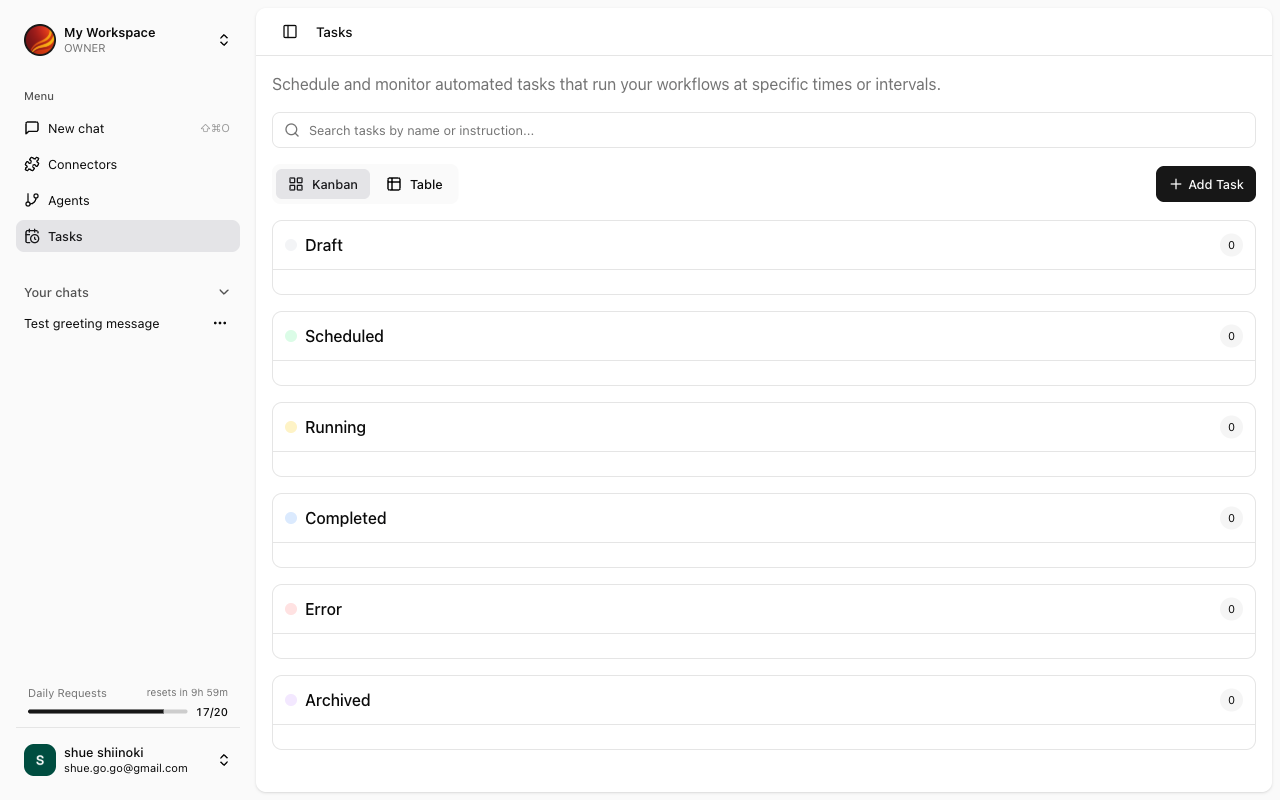
The Task Management screen allows you to schedule and automate agent execution. You can manage automatic execution of regular tasks and processing at specified times.
 ## What are Tasks
Tasks are units that manage agent execution. They consist of the following elements:
| Element | Description |
| ------------------ | -------------------------------------- |
| **Agent** | The agent to execute |
| **Task Name** | Identifier name for the task |
| **Initial Input** | The message to send to the agent first |
| **Execution Time** | The date and time to execute the task |
## Screen Layout
The Task Management screen consists of the following sections:
### Task List
Displays a list of created tasks.
For each task, the following information is displayed:
* Task name
* Agent used
* Execution status (Draft/Scheduled/Completed)
* Next execution time
* Last execution time
### Drafts
Displays tasks before schedule settings.
For more details, see [Draft Management](/en/pages/jinba_app/tasks/draft-management).
### Scheduled
Displays tasks with execution times set.
For more details, see [Scheduled Execution](/en/pages/jinba_app/tasks/schedule-execution).
## Accessing Task Management
Select "Tasks" from the side menu.
The task list is displayed.
## Key Features
Create new tasks
Edit and manage draft tasks
Set task execution times
## Task Use Cases
* **Agent**: Sales Report Creation Agent
* **Initial Input**: "Please create this week's sales report"
* **Execution Time**: Every Friday at 17:00
* **Agent**: Data Analysis Agent
* **Initial Input**: "Please aggregate yesterday's sales data"
* **Execution Time**: Every day at 9:00
* **Agent**: Report Creation Agent
* **Initial Input**: "Please create last month's activity report"
* **Execution Time**: 1st of every month at 10:00
## Task States
Tasks have the following states:
| State | Description |
| ------------- | ----------------------------------------- |
| **Draft** | Created but schedule not yet set |
| **Scheduled** | Execution time set, waiting for execution |
| **Running** | Currently executing |
| **Completed** | Execution finished |
| **Error** | Error occurred during execution |
## What are Tasks
Tasks are units that manage agent execution. They consist of the following elements:
| Element | Description |
| ------------------ | -------------------------------------- |
| **Agent** | The agent to execute |
| **Task Name** | Identifier name for the task |
| **Initial Input** | The message to send to the agent first |
| **Execution Time** | The date and time to execute the task |
## Screen Layout
The Task Management screen consists of the following sections:
### Task List
Displays a list of created tasks.
For each task, the following information is displayed:
* Task name
* Agent used
* Execution status (Draft/Scheduled/Completed)
* Next execution time
* Last execution time
### Drafts
Displays tasks before schedule settings.
For more details, see [Draft Management](/en/pages/jinba_app/tasks/draft-management).
### Scheduled
Displays tasks with execution times set.
For more details, see [Scheduled Execution](/en/pages/jinba_app/tasks/schedule-execution).
## Accessing Task Management
Select "Tasks" from the side menu.
The task list is displayed.
## Key Features
Create new tasks
Edit and manage draft tasks
Set task execution times
## Task Use Cases
* **Agent**: Sales Report Creation Agent
* **Initial Input**: "Please create this week's sales report"
* **Execution Time**: Every Friday at 17:00
* **Agent**: Data Analysis Agent
* **Initial Input**: "Please aggregate yesterday's sales data"
* **Execution Time**: Every day at 9:00
* **Agent**: Report Creation Agent
* **Initial Input**: "Please create last month's activity report"
* **Execution Time**: 1st of every month at 10:00
## Task States
Tasks have the following states:
| State | Description |
| ------------- | ----------------------------------------- |
| **Draft** | Created but schedule not yet set |
| **Scheduled** | Execution time set, waiting for execution |
| **Running** | Currently executing |
| **Completed** | Execution finished |
| **Error** | Error occurred during execution |