> ## Documentation Index
> Fetch the complete documentation index at: https://docs.jinba.io/llms.txt
> Use this file to discover all available pages before exploring further.
# Marketplace
> List and installation of standard MCPs
## What is the Marketplace
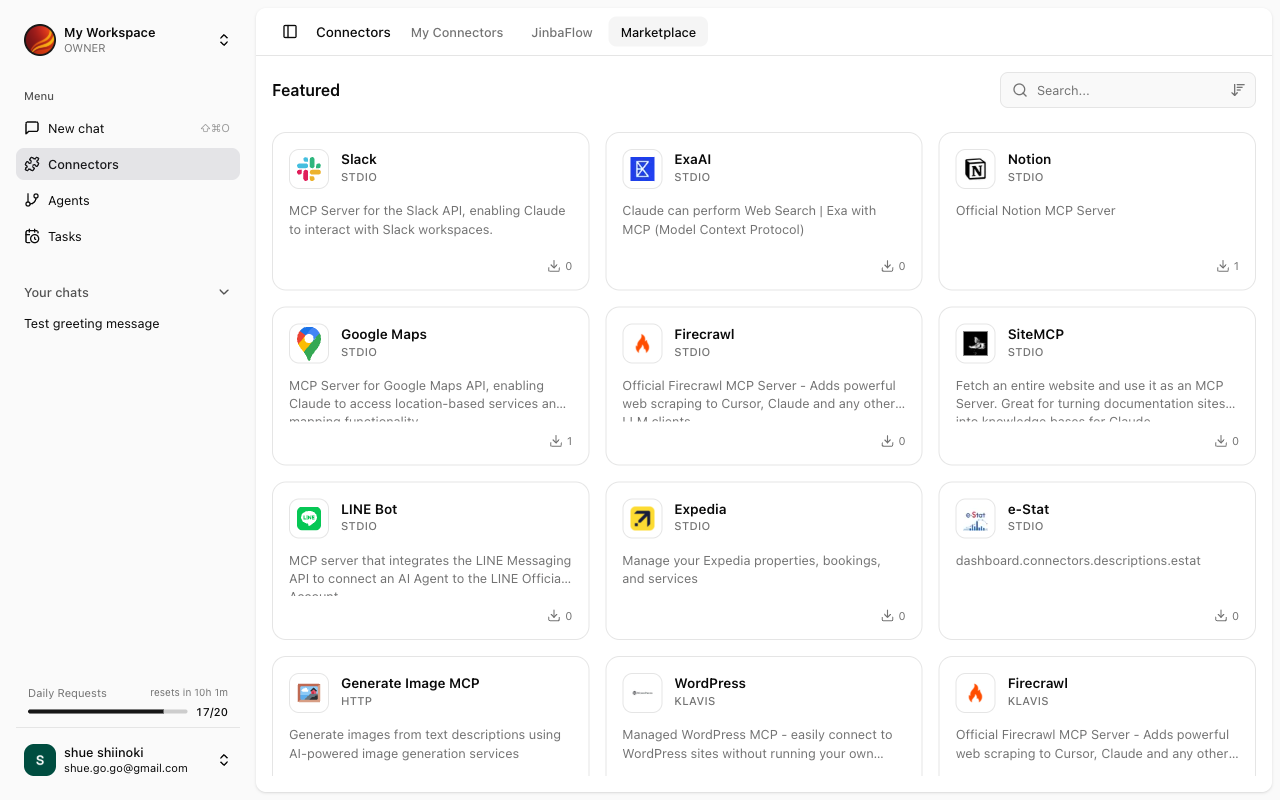
The Marketplace (MCP App Store) allows you to install standard MCPs that are ready to use. You can start integrating with various external services without the hassle of setting up your own MCP.
 ## Standard MCP List
The following standard MCPs are available for installation in Jinba App.
| MCP Name | Description |
| --------------- | --------------------------------------------------------------- |
| **Custom MCP** | Bring your own custom MCP server configuration |
| **Slack** | MCP server for Slack API. AI can interact with Slack workspaces |
| **ExaAI** | Perform web searches using MCP |
| **Notion** | Official Notion MCP server |
| **Google Maps** | Access location-based services and mapping features |
| **Firecrawl** | Provides powerful web scraping capabilities |
| **SiteMCP** | Fetch entire websites and use them as a knowledge base |
| **LINE Bot** | Connect AI agents to LINE official accounts |
| **Expedia** | Manage Expedia properties, bookings, and services |
| **e-Stat** | Access government statistical data |
## MCPs via Klavis
Additional MCPs are available through the Klavis platform.
| MCP Name | Description |
| ---------------------- | ------------------------------------------------- |
| **WordPress** | Easily connect to WordPress sites |
| **Firecrawl** | Provides powerful web scraping capabilities |
| **YouTube** | Access YouTube video transcripts |
| **KlavisAI ReportGen** | Generate web reports based on search queries |
| **Supabase** | Manage Supabase projects, databases, and services |
| **Notion** | Official Notion MCP server |
| **Slack** | AI can interact with Slack workspaces |
| **Doc2Markdown** | Convert documents in various formats to Markdown |
| **Markdown2Doc** | Convert Markdown to PDF, DOCX, and other formats |
## How to Install MCPs
Select "Apps & MCP" from the side menu.
Click the "MCP App Store" tab to view available MCPs.
Click on the MCP card you want to install.
Enter the required settings (such as API keys). For standard MCPs, many fields are pre-configured.
Click the "Register" button to install the MCP.
MCPs via Klavis may require OAuth authentication with external services.
## Related Pages
Managing installed connectors
Connecting Jinba Flow connectors
## Standard MCP List
The following standard MCPs are available for installation in Jinba App.
| MCP Name | Description |
| --------------- | --------------------------------------------------------------- |
| **Custom MCP** | Bring your own custom MCP server configuration |
| **Slack** | MCP server for Slack API. AI can interact with Slack workspaces |
| **ExaAI** | Perform web searches using MCP |
| **Notion** | Official Notion MCP server |
| **Google Maps** | Access location-based services and mapping features |
| **Firecrawl** | Provides powerful web scraping capabilities |
| **SiteMCP** | Fetch entire websites and use them as a knowledge base |
| **LINE Bot** | Connect AI agents to LINE official accounts |
| **Expedia** | Manage Expedia properties, bookings, and services |
| **e-Stat** | Access government statistical data |
## MCPs via Klavis
Additional MCPs are available through the Klavis platform.
| MCP Name | Description |
| ---------------------- | ------------------------------------------------- |
| **WordPress** | Easily connect to WordPress sites |
| **Firecrawl** | Provides powerful web scraping capabilities |
| **YouTube** | Access YouTube video transcripts |
| **KlavisAI ReportGen** | Generate web reports based on search queries |
| **Supabase** | Manage Supabase projects, databases, and services |
| **Notion** | Official Notion MCP server |
| **Slack** | AI can interact with Slack workspaces |
| **Doc2Markdown** | Convert documents in various formats to Markdown |
| **Markdown2Doc** | Convert Markdown to PDF, DOCX, and other formats |
## How to Install MCPs
Select "Apps & MCP" from the side menu.
Click the "MCP App Store" tab to view available MCPs.
Click on the MCP card you want to install.
Enter the required settings (such as API keys). For standard MCPs, many fields are pre-configured.
Click the "Register" button to install the MCP.
MCPs via Klavis may require OAuth authentication with external services.
## Related Pages
Managing installed connectors
Connecting Jinba Flow connectors