> ## Documentation Index
> Fetch the complete documentation index at: https://docs.jinba.io/llms.txt
> Use this file to discover all available pages before exploring further.
# Chat Overview
> Overview and screen layout of Jinba App chat feature
## What is the Chat Feature
The chat feature is the main functionality of Jinba App. You can ask questions and give instructions to AI in a conversational format to get answers.
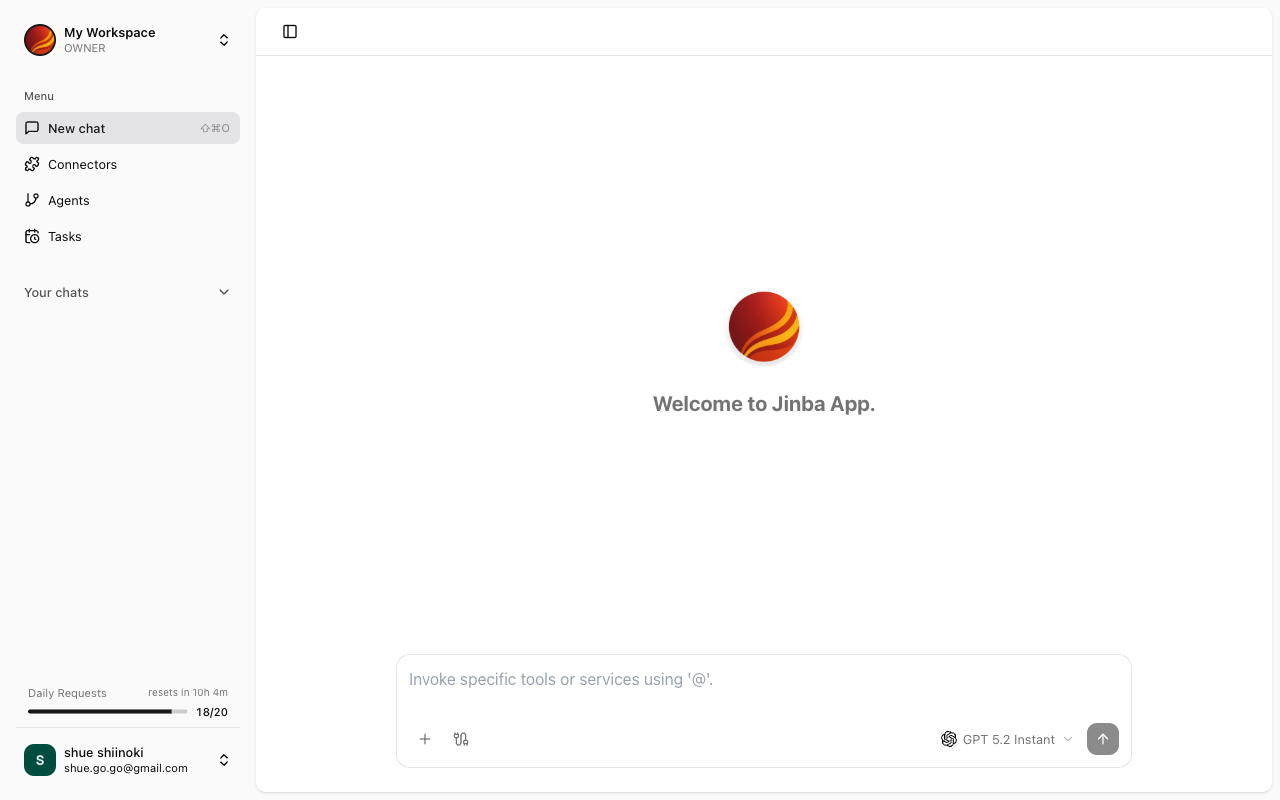 ## Screen Layout
The chat screen consists of the following elements:
### Chat List
The list of past chats is displayed on the left side of the screen.
* **New Chat**: Start a new chat
* **Chat History**: Click on a past chat to resume from where you left off
* **Search**: Search through your chat history
### Message Area
The conversation with AI is displayed in the center of the screen.
* Messages sent by the user
* Responses from AI
* Attached file contents
* Connector execution results
### Input Area
The message input area is at the bottom of the screen.
* Text input field
* File attachment button
* Send button
## Key Features
Send text messages to AI
Attach files for AI to process
Retrieve information by integrating with external services
Review responses from AI
## Starting a New Chat
Click the "New Chat" button at the top of the chat list.
Type your message in the input area.
Click the send button or press Enter to send your message.
## Resuming Past Chats
Click on a past chat in the chat list to resume the conversation from where you left off.
## Screen Layout
The chat screen consists of the following elements:
### Chat List
The list of past chats is displayed on the left side of the screen.
* **New Chat**: Start a new chat
* **Chat History**: Click on a past chat to resume from where you left off
* **Search**: Search through your chat history
### Message Area
The conversation with AI is displayed in the center of the screen.
* Messages sent by the user
* Responses from AI
* Attached file contents
* Connector execution results
### Input Area
The message input area is at the bottom of the screen.
* Text input field
* File attachment button
* Send button
## Key Features
Send text messages to AI
Attach files for AI to process
Retrieve information by integrating with external services
Review responses from AI
## Starting a New Chat
Click the "New Chat" button at the top of the chat list.
Type your message in the input area.
Click the send button or press Enter to send your message.
## Resuming Past Chats
Click on a past chat in the chat list to resume the conversation from where you left off.