> ## Documentation Index
> Fetch the complete documentation index at: https://docs.jinba.io/llms.txt
> Use this file to discover all available pages before exploring further.
# Quickstart
> Create and run your first workflow in 10 minutes
Get started with Jinba Flow by building a simple workflow that searches the web and summarizes results using AI.
## What You'll Build
A workflow that:
1. Searches Google for a topic you specify
2. Summarizes the results using AI
3. Returns a concise summary
## Prerequisites
* A Jinba Flow account ([Sign up here](https://flow.jinba.io/))
* No coding experience required
## Steps
Go to [flow.jinba.io](https://flow.jinba.io/) and sign in to your account.
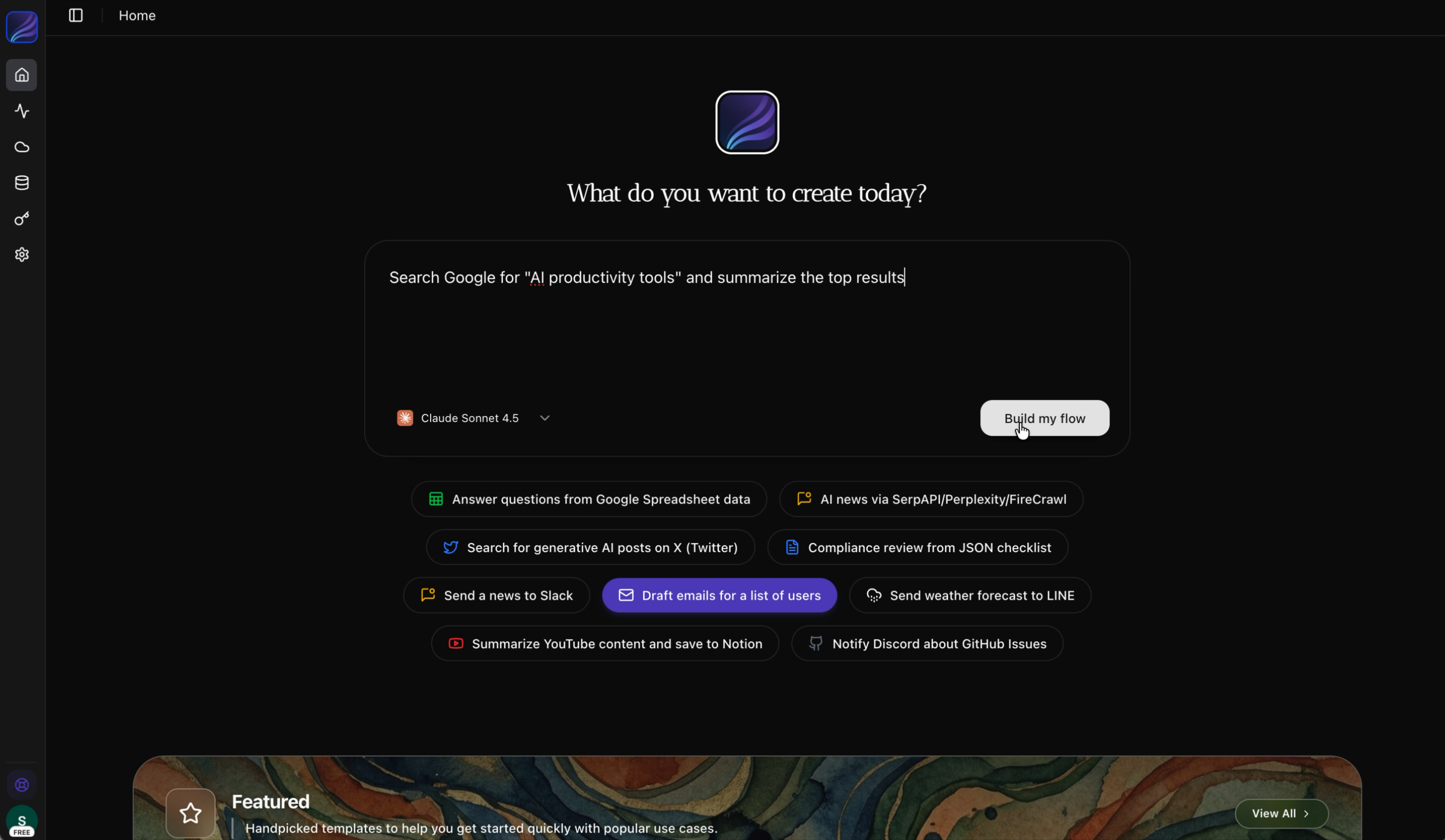
In the chat panel, type a natural language description of what you want to accomplish:
```
Search Google for "AI productivity tools" and summarize the top results
```
Click "Create Flow" (or press Enter) to let the AI generate your workflow.
 The flow is created in the left chat panel, and a manifest defining the step structure is automatically generated in the right YAML coding panel.
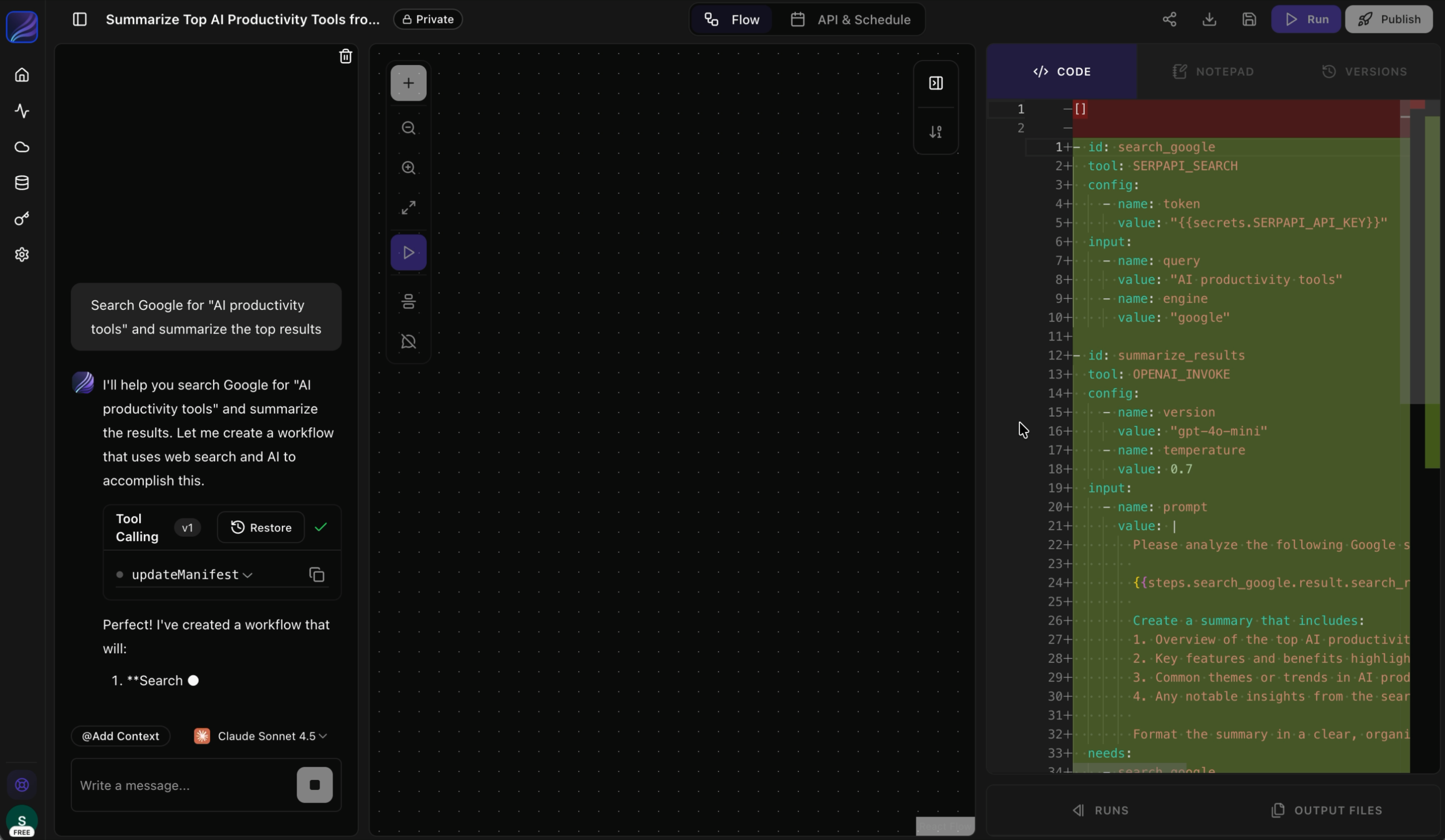 Review the AI-generated flow and click **"Accept Changes"** to confirm the generated workflow.
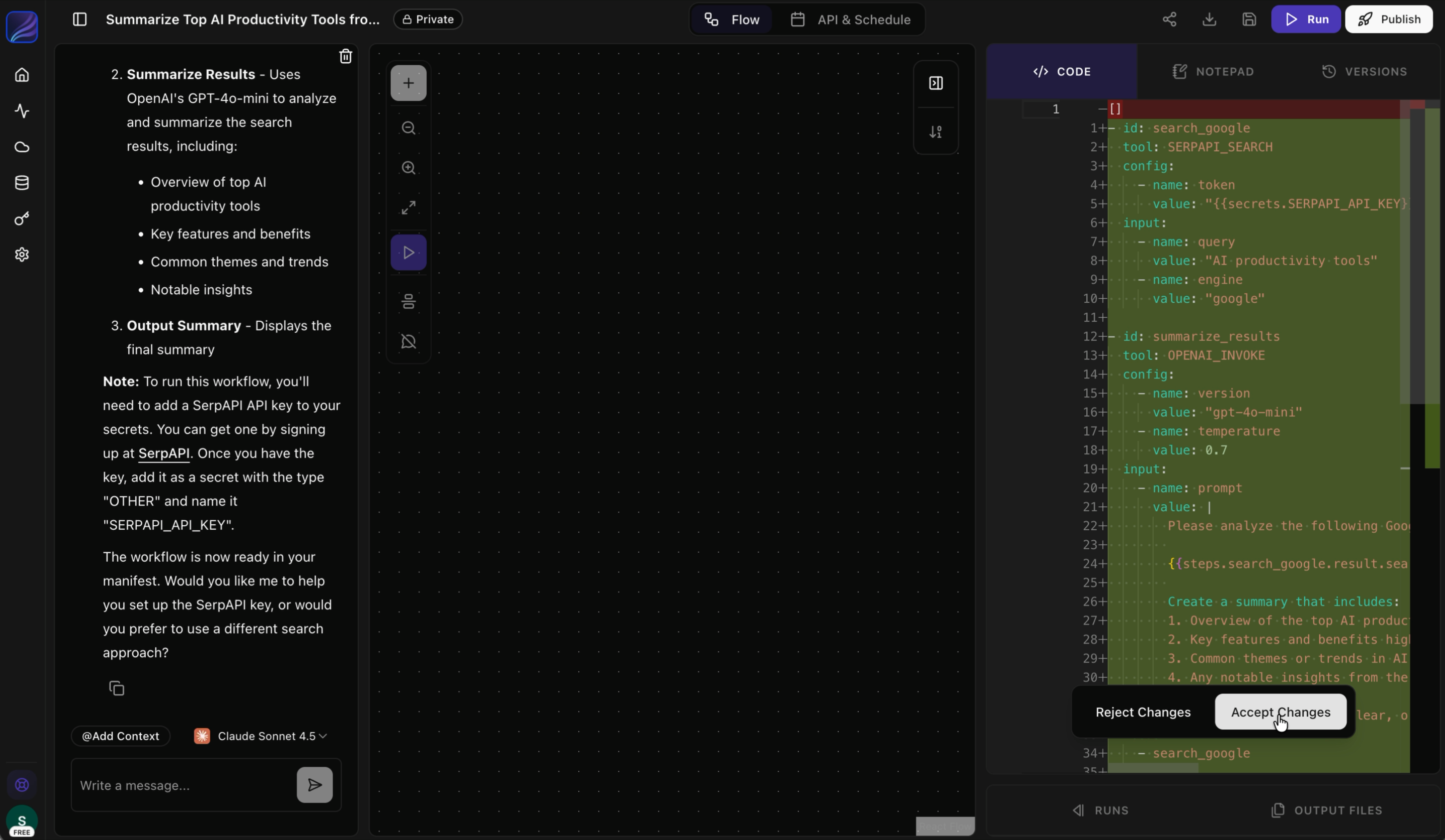 Once the flow is confirmed, the workflow will be displayed in the central graph editor.
Click the "Execute" button in the top right to run the workflow.
Once the flow is confirmed, the workflow will be displayed in the central graph editor.
Click the "Execute" button in the top right to run the workflow.
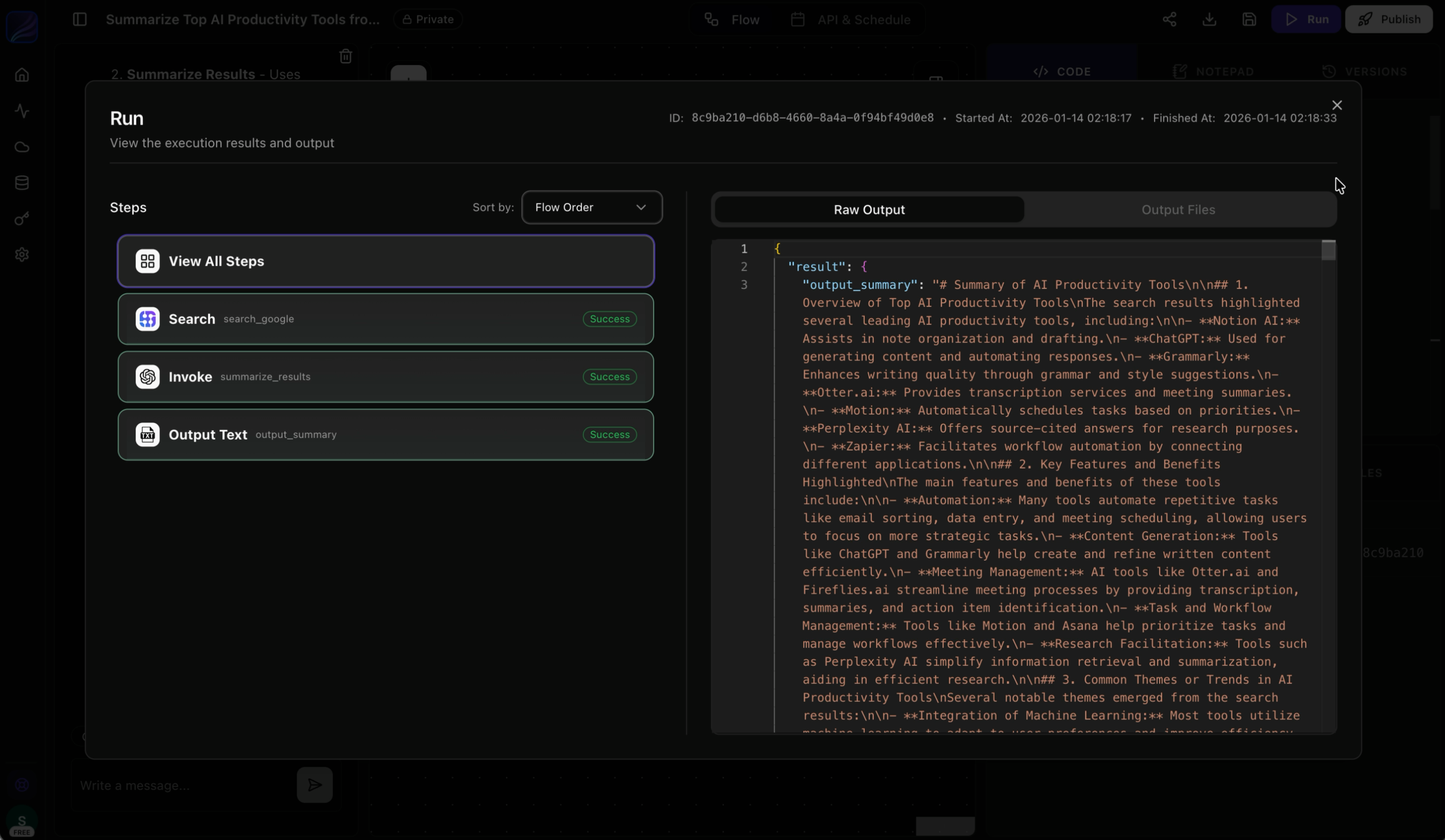
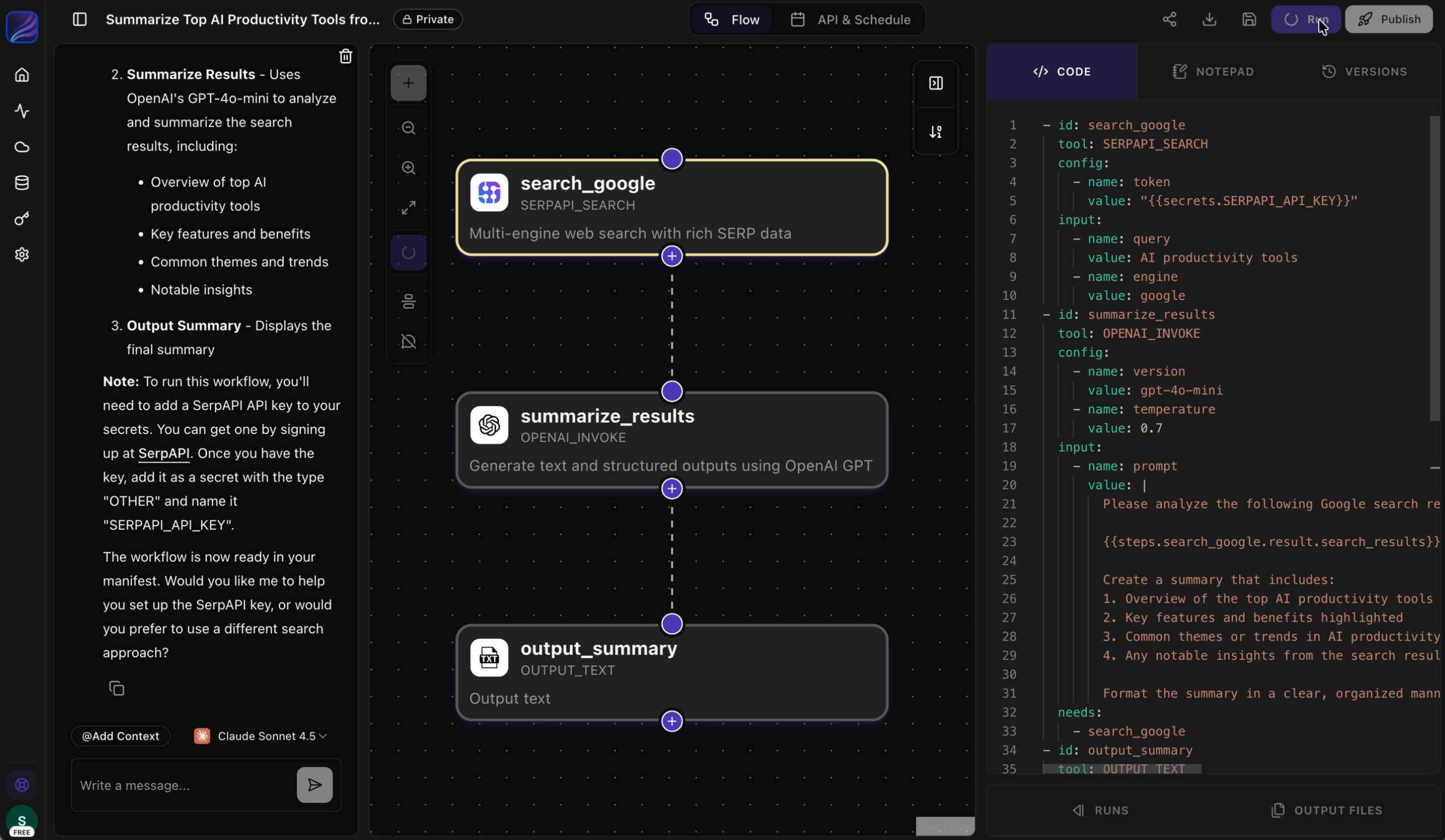 Once execution completes successfully, click "View Details" displayed at the bottom right to check the execution results.
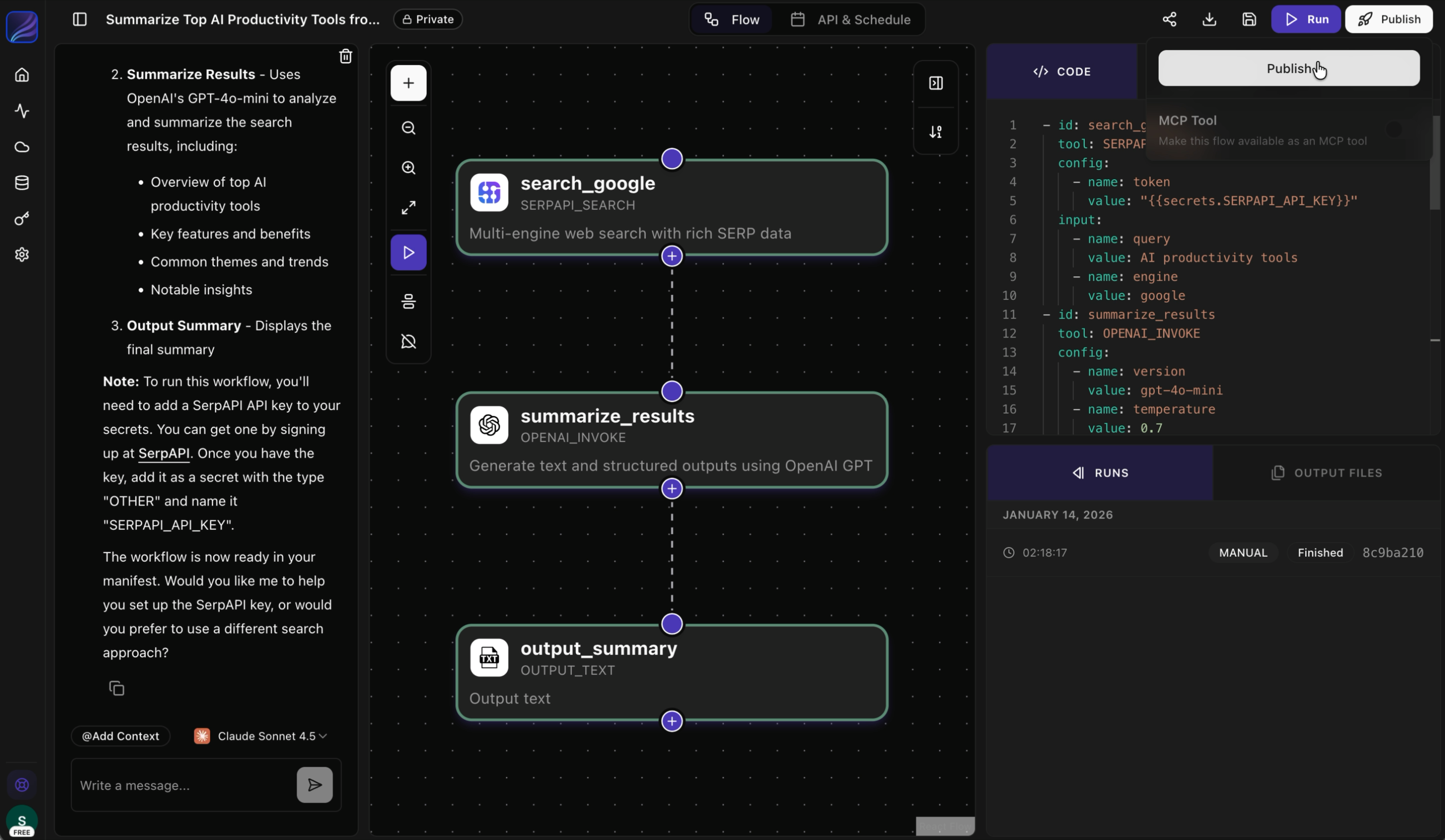
 Once the flow has executed successfully, click the "Deploy" button in the top right to publish your workflow.
 ## What's Next?
Learn the key terms and concepts used in Jinba Flow
Explore the three ways to create workflows
Browse the catalog of tools you can use
Connect your external services
## What's Next?
Learn the key terms and concepts used in Jinba Flow
Explore the three ways to create workflows
Browse the catalog of tools you can use
Connect your external services